Use your real email, the one your Evergreen admins have on file for you. The practice logins that end in +evsb are a test group and don’t show your real schedule.
First time? Enter your email and tap Continue. We email you a code; enter it, then choose a password.
Still stuck? Use the help chat in the app or on the website, or ask your admin to check the email Describe has for you.
Open questionDo any Evergreen hospital Wi-Fi networks block apps on first sign-in? One hospital network has done this for another group.
Screenshot to come: the sign-in screen (EVSB)
The sign-in screen
Screenshot to come: the code and new-password screen (EVSB)
You’ll see your schedule and the team’s. From Dec 15 you can also send requests and use the Marketplace there.
Screenshot to come: desktop sign-in
Sign in with the same email as the app
Screenshot to come: desktop Schedule page (EVSB)
Schedule: your shifts, or the team’s
L4I work in both the ED and Urgent Care. Do I need two logins?
No. One login shows both groups. To switch, open the menu and tap your group’s name, or go to Settings → Group.
Screenshot to come: the group switch (EVSB)
Switching between ED and Urgent Care
Before Dec 15
B1Can I trade or give away a shift in Describe now?
Not yet. Until Dec 15, ShiftAdmin is the official schedule. Keep doing every swap, trade, give-away and request in ShiftAdmin.
Describe shows your schedule so you can get used to the app. We copy ShiftAdmin’s changes into Describe, but not instantly, so a change can take a little while to appear.
B2Describe and ShiftAdmin show different shifts. Which is right?
Until Dec 15, ShiftAdmin. From Dec 15, Describe.
If something still looks wrong after Dec 15, tell your admin or use the help chat.
Schedule
S1How can I see who else is working on a day?
On the Schedule screen, go to the Team tab to see all sites and all shifts. By default you’re on the My Schedule tab, which shows only your own shifts.
Screenshot to come: Team tab (EVSB)
Team tab: everyone’s shifts for the day
S2How do I view only the schedule for one site?
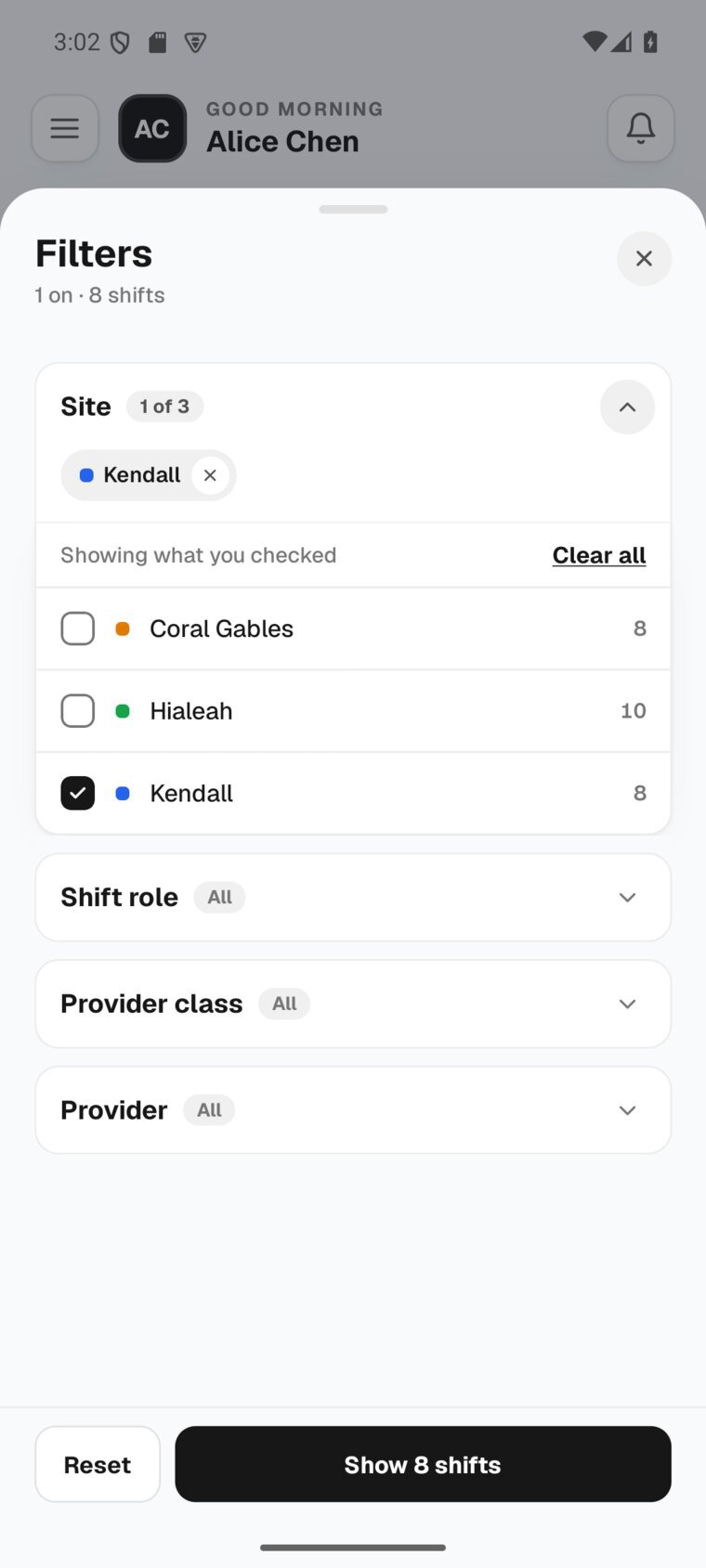
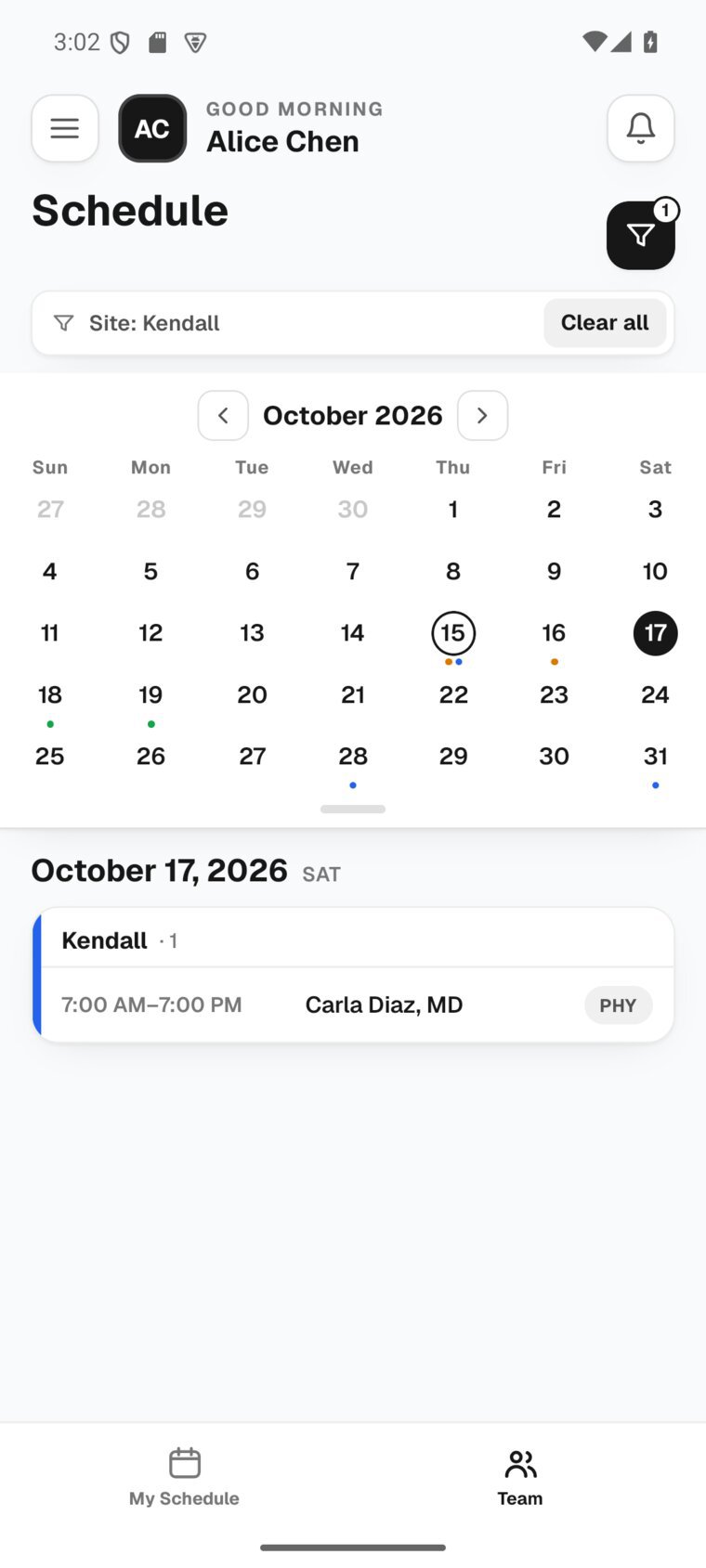
On the Team tab, tap the filter button at the top right. Open Site, tick the site you want, then tap Show shifts.
NoteEvery list starts unticked, which means everything shows. To see everyone again, tap Clear all in the bar under the title.
Filter button → Site → tick itOnly that site’s shifts
S3How do I view only a colleague’s schedule?
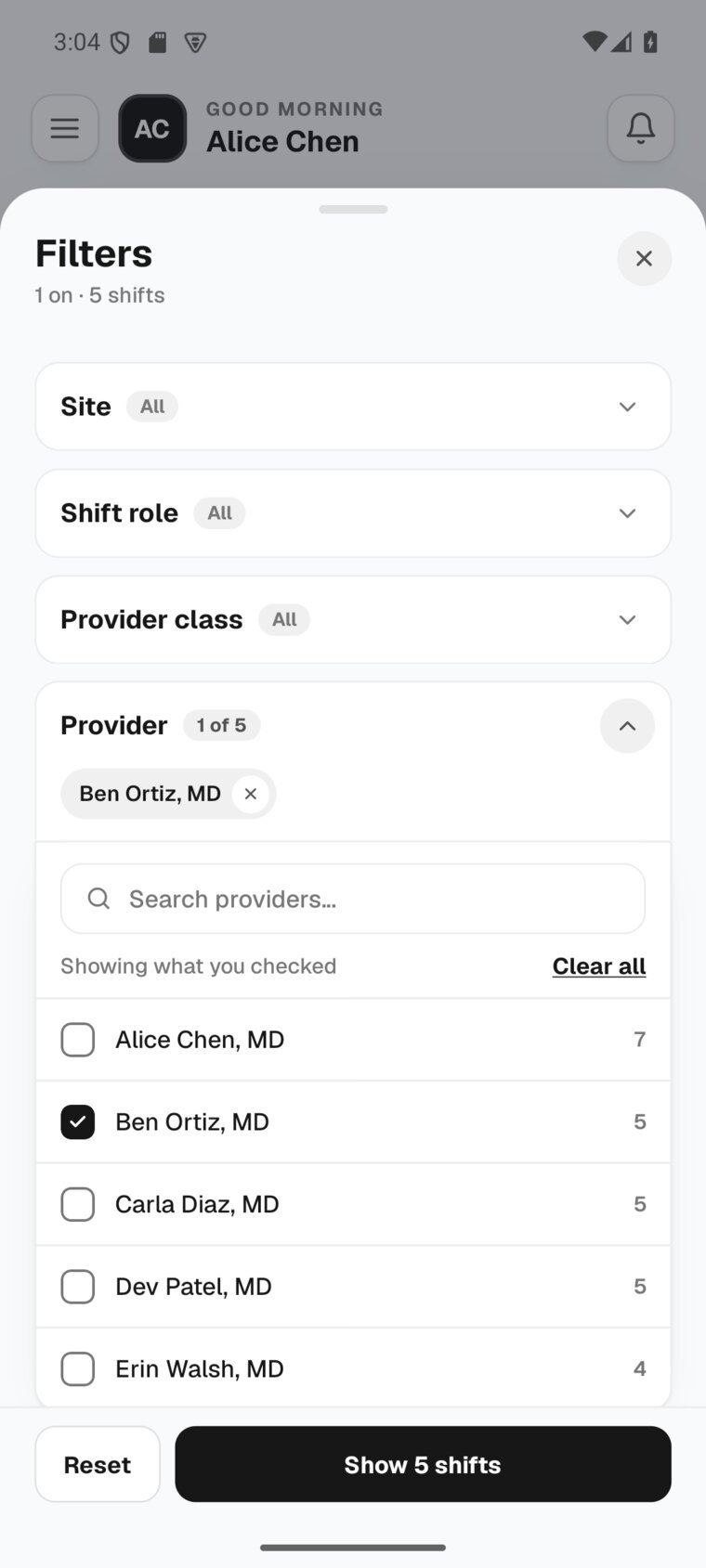
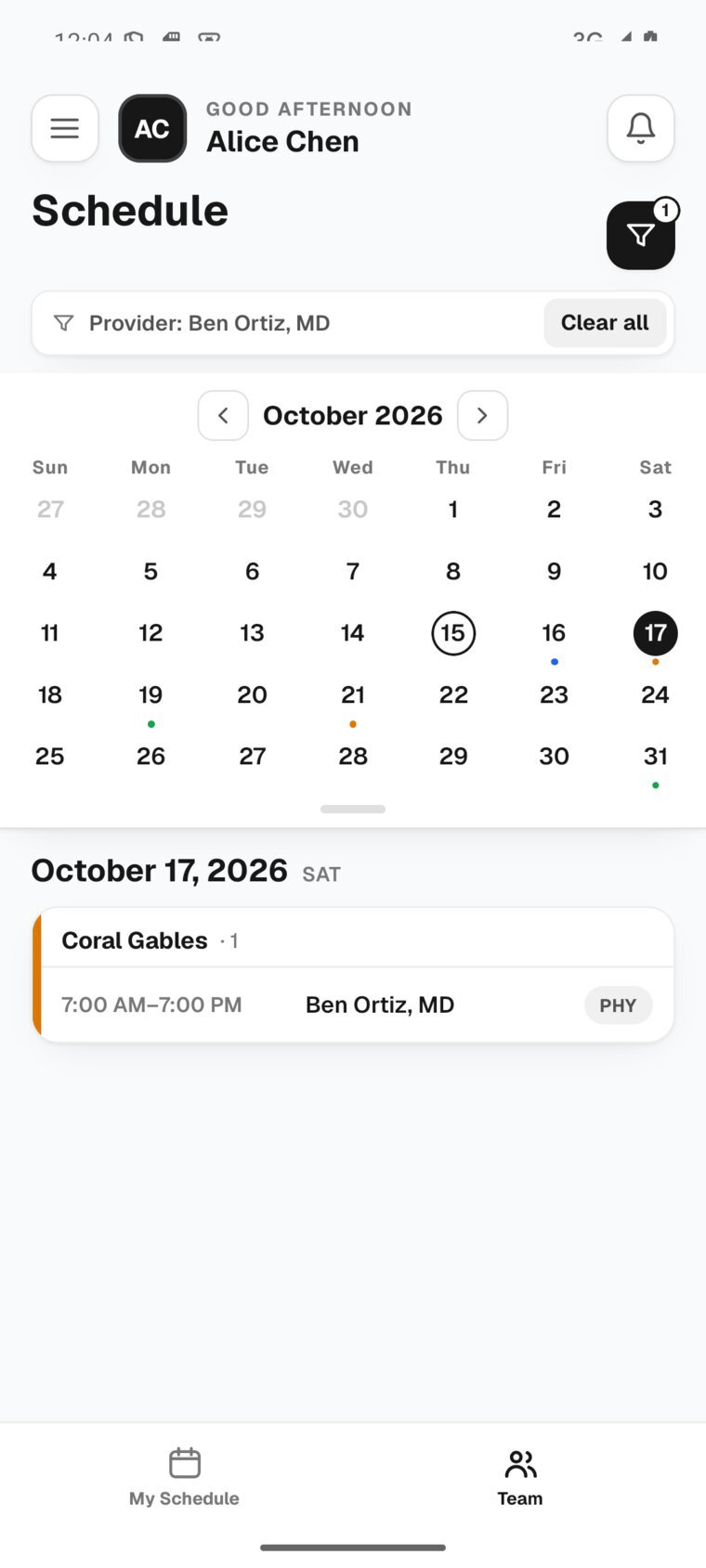
Same steps, with Provider: on the Team tab, tap the filter button, open Provider, search for their name, tick it, then tap Show shifts. The calendar’s dots then mark the days they work.
NoteTo see everyone again, tap Clear all in the bar under the title.
Provider → tick your colleagueDots on the days they work
S4Can I see all my shifts for the month in a list?
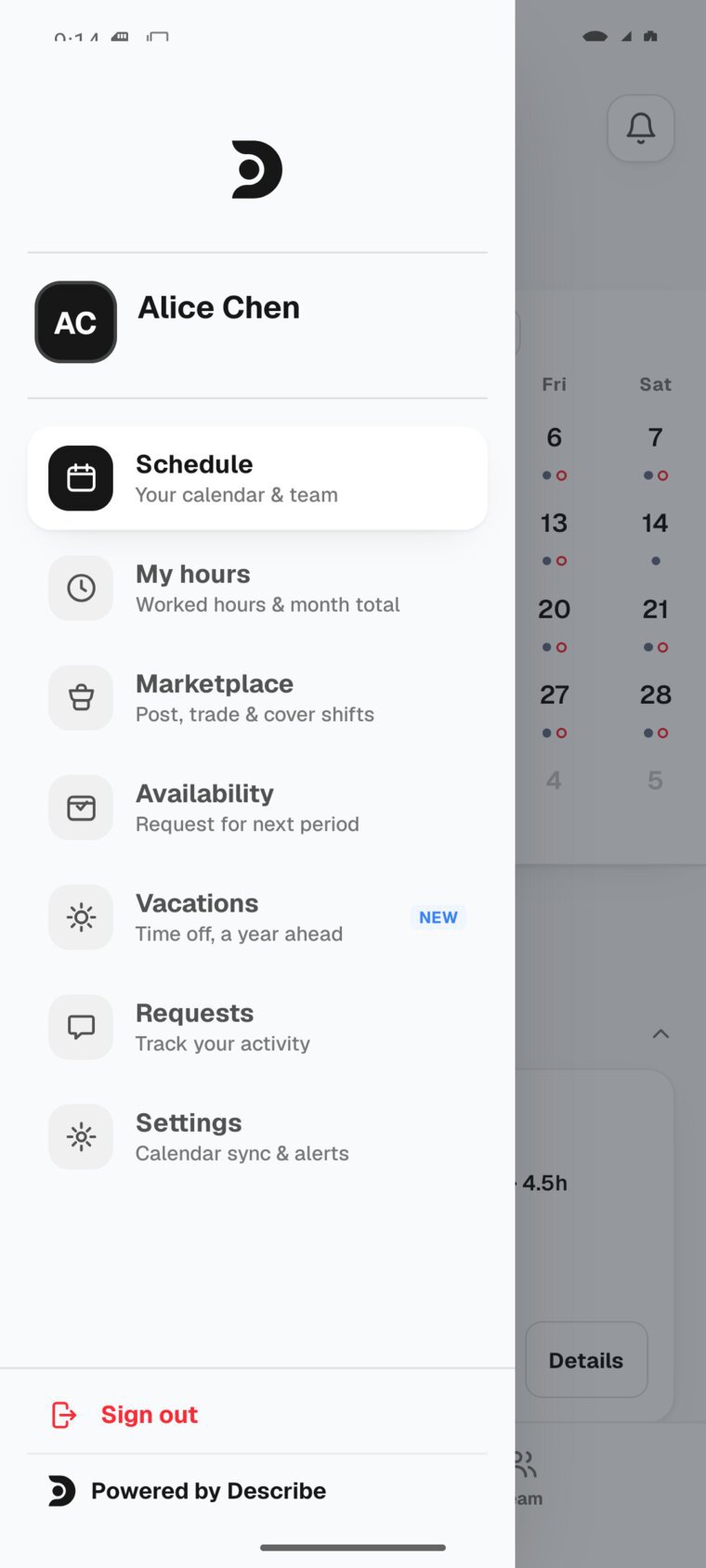
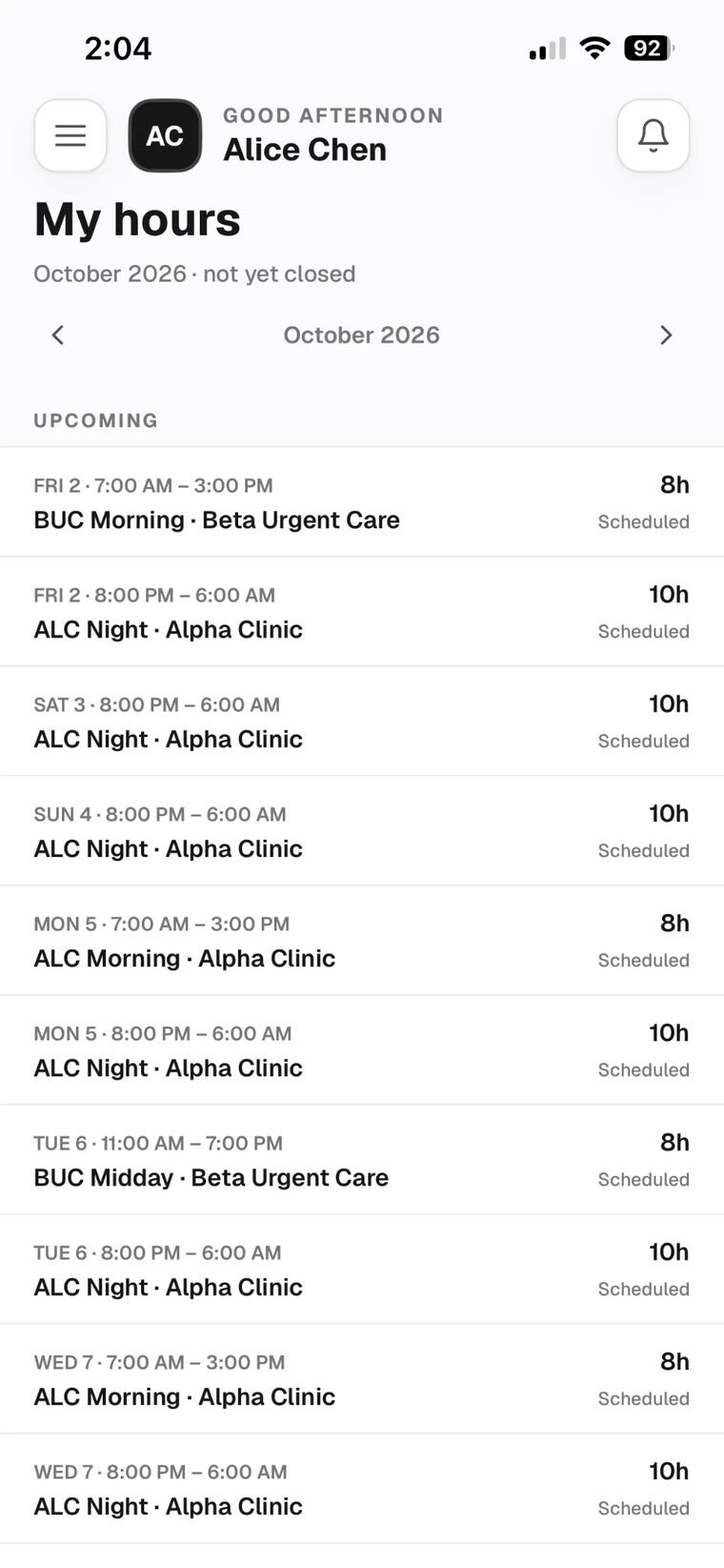
Yes. Open the menu and tap My hours. It lists every shift of yours in the month, upcoming first. Use the arrows at the top to change month.
Menu → My hoursEvery shift in the month, in a list
S5When can I put in requests for the next block?
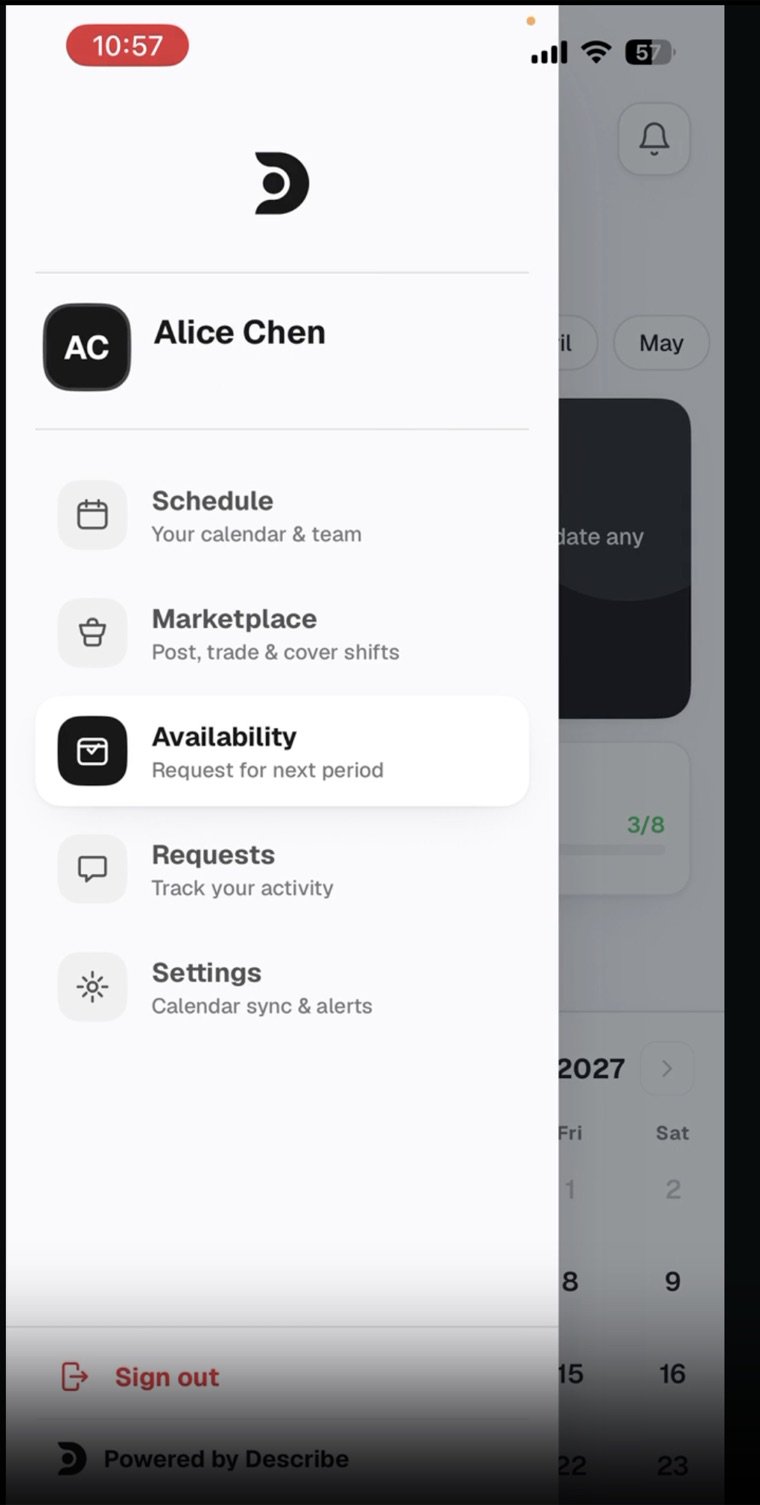
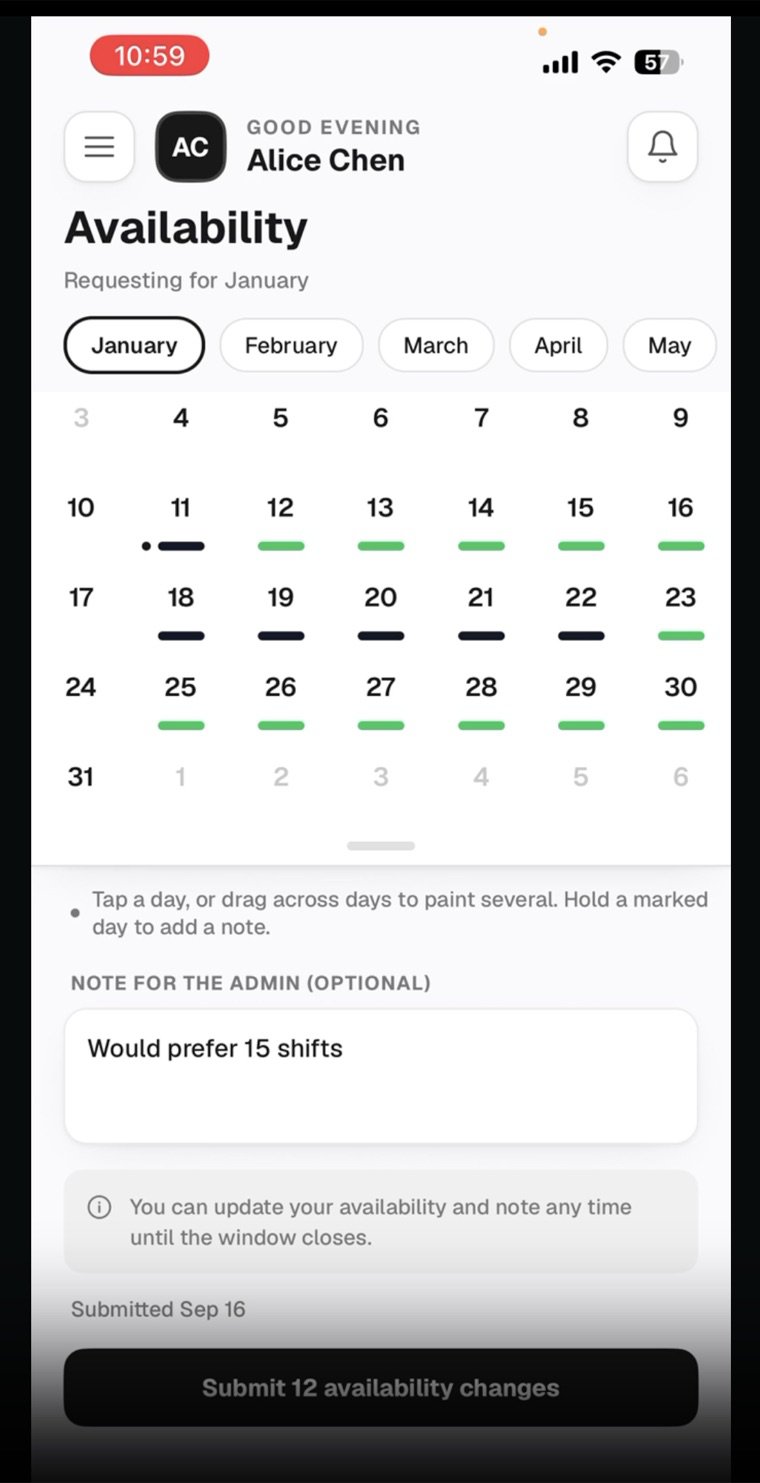
Your admins will tell you when requests open for the next block, and you’ll get a notification. See slide 7.
Menu → AvailabilityMark your days, leave a note, then Submit
S6What are the meetings on my schedule?
Group meetings show on your schedule as events, so you can see them next to your shifts.
Clock-in / Clock-out (from Dec 15)
C1Where do I clock in and out?
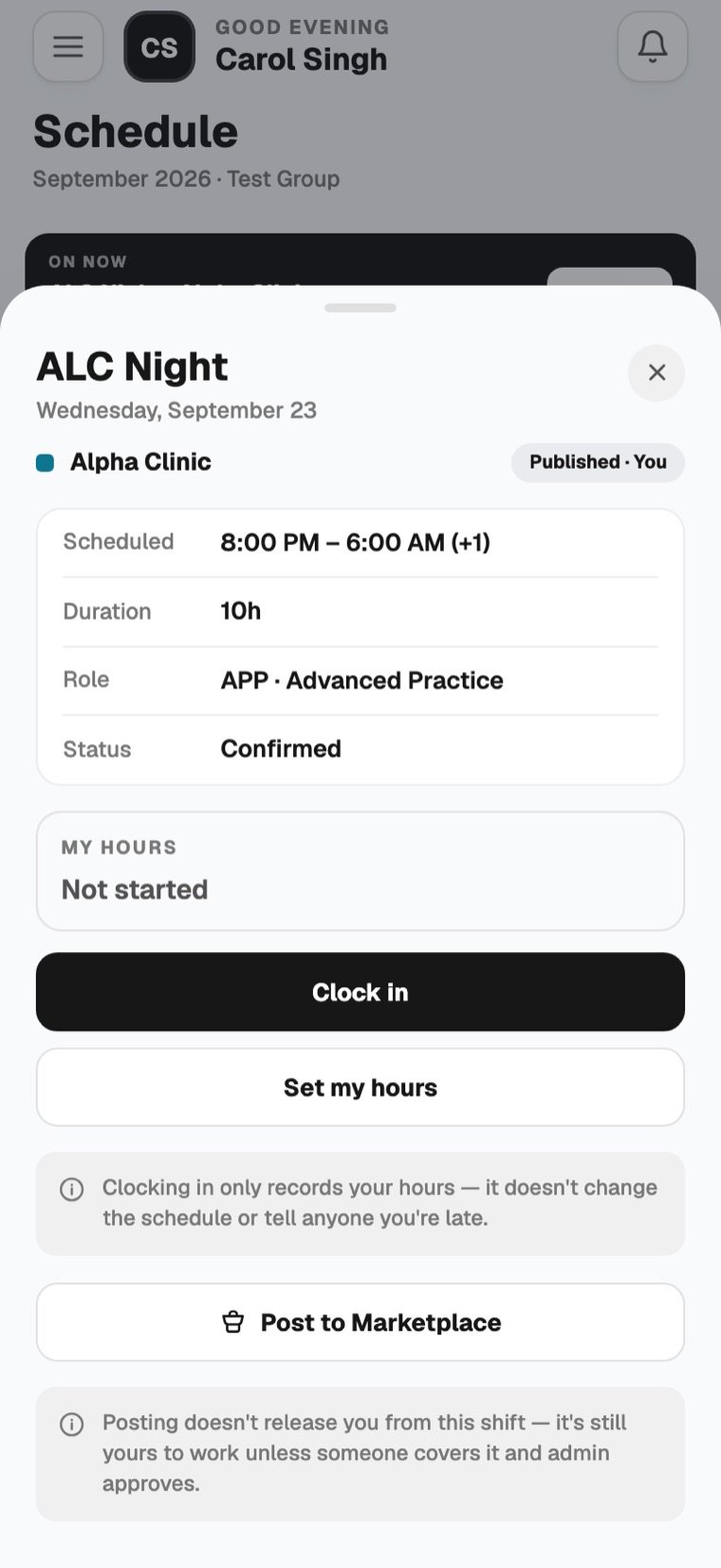
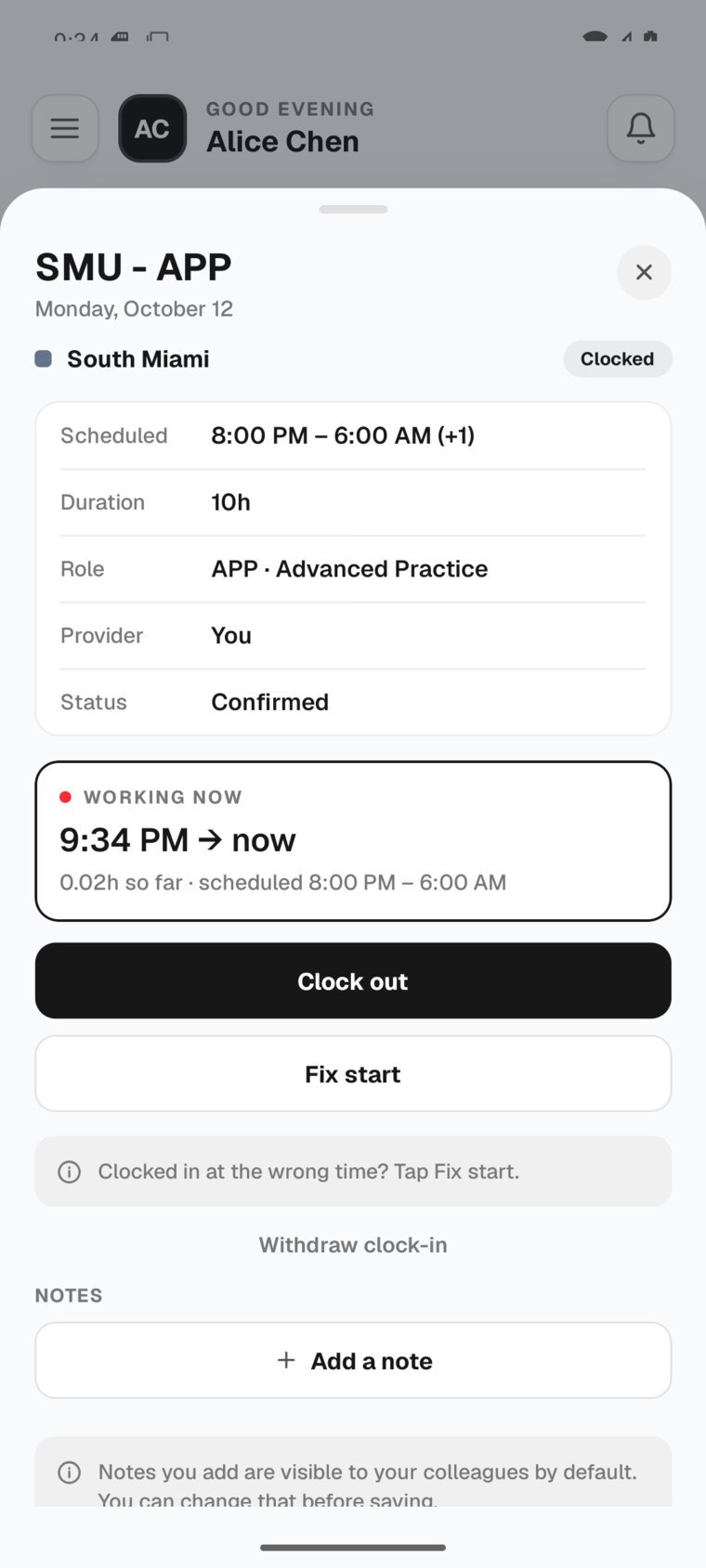
Schedule screen → tap your shift → Clock in / Clock out / Set my hours.
From Dec 15. Until then, keep using ShiftAdmin.
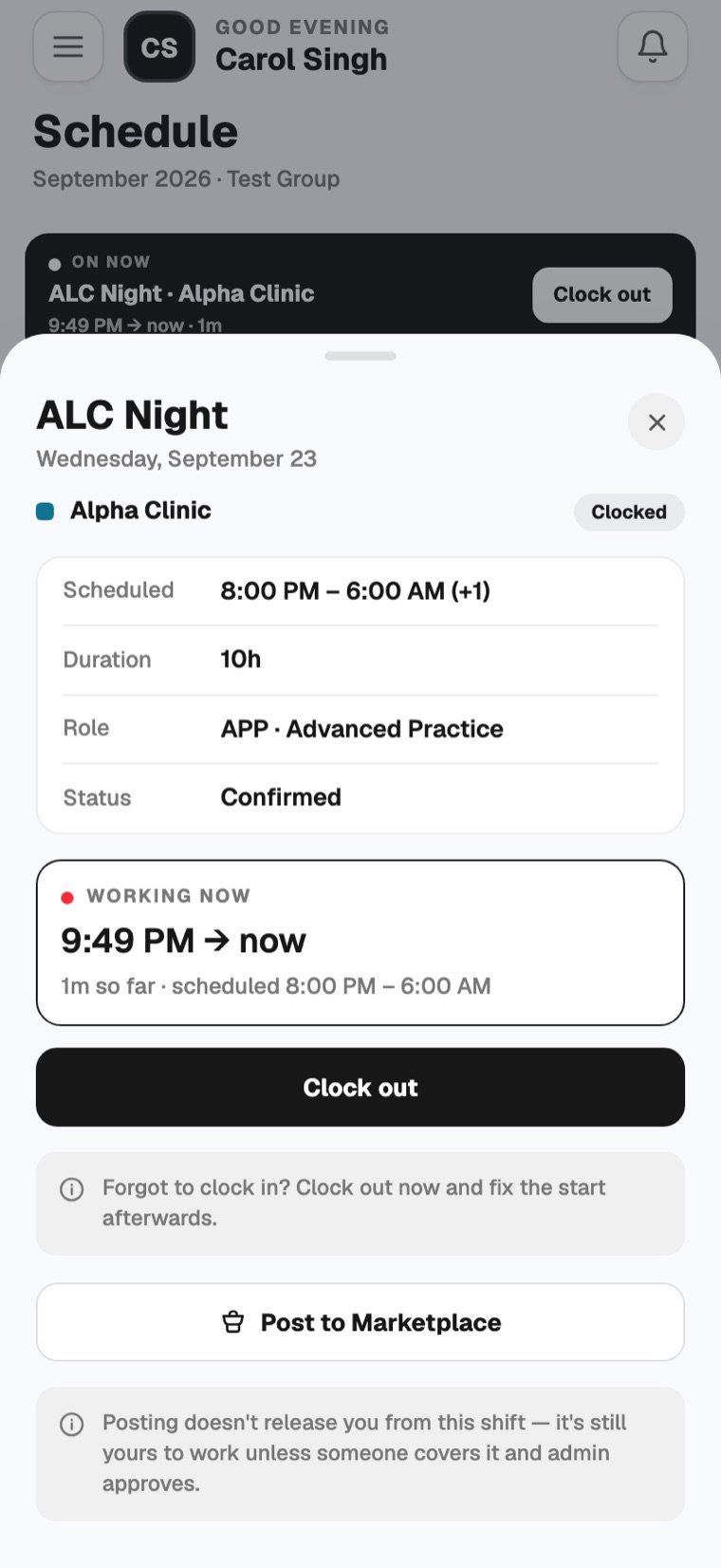
Before you start: Clock in or Set my hoursWhile you’re working: Clock out
C2How early can I clock in?
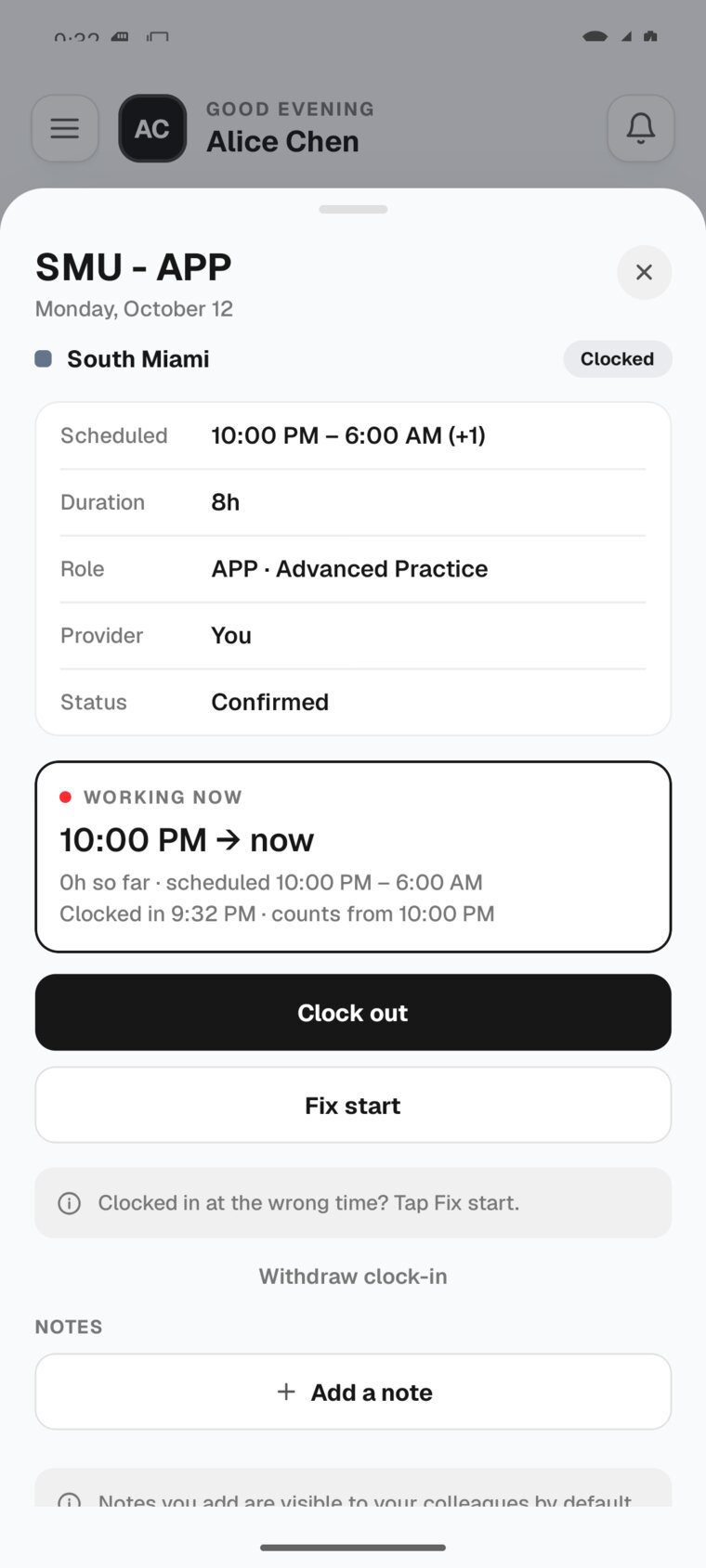
Clock in opens 1 hour before your shift starts.
If you clock in early, your hours still count from the scheduled start. Really started early? Tap the shift → + Add a note and say when you started.
Clocked in early: hours count from the scheduled start
C3I forgot to clock in, or my hours are wrong. How do I fix them?
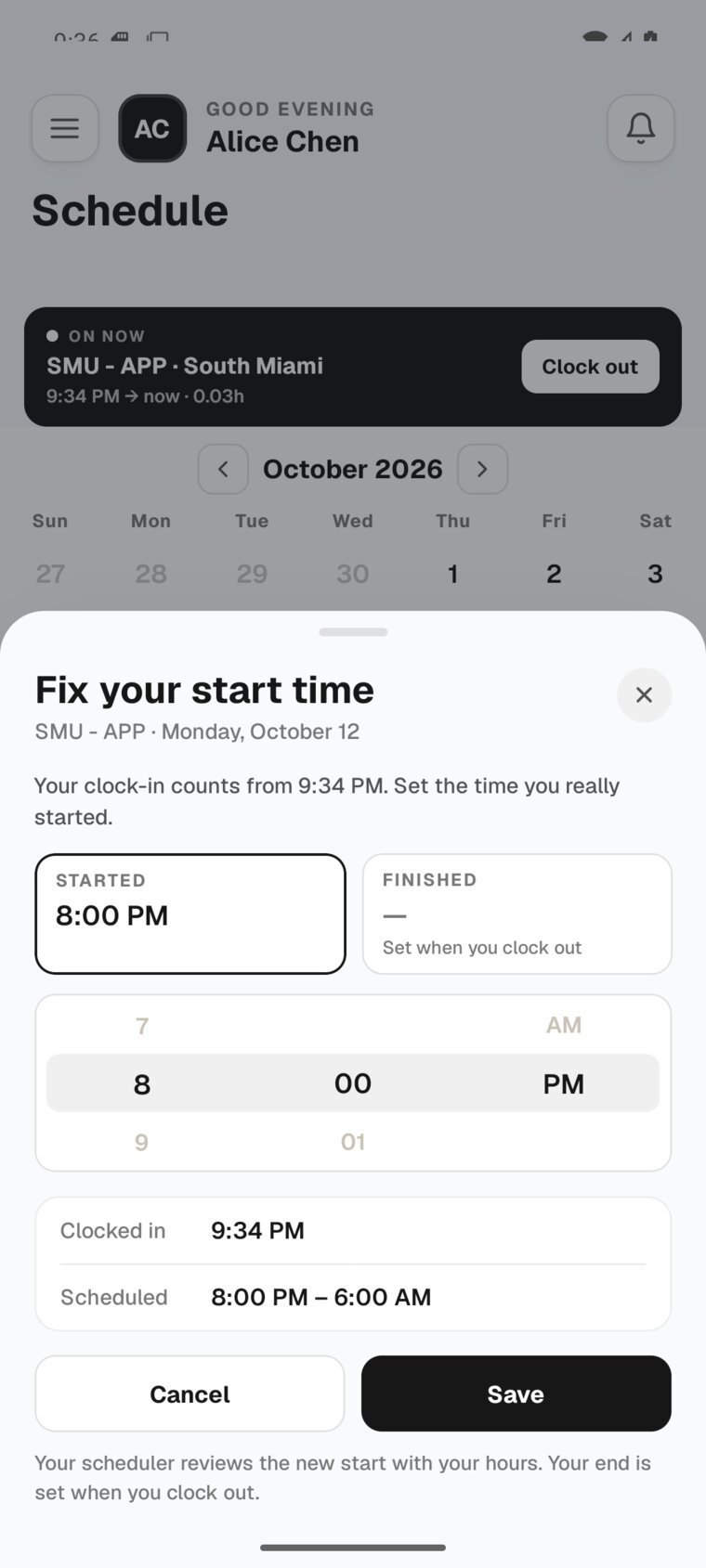
Still on shift? Tap your shift → Clock in now, then Fix start and set the time you really started.
Shift already over? Tap your shift → Set my hours, set the times you worked, and save.
Your changes save straight away.
Open questionToday edited hours save with no approval step. Other groups require approval, and a 48-hour edit window with a required note came up in an earlier check-in. Which do you want?
While clocked in: Fix startSet when you really started → Save
C4What if I forget to clock out?
Open the shift and tap Clock out, or set the time you finished with Set my hours.
Open questionDo you want automatic clock-out and missed punches on? Then this answer changes.
Marketplace (from Dec 15)
Open questionWhich Marketplace types turn on Dec 15: give away, trade, trade with one person, split, pick up an open shift, call-out? Should moves need an admin’s OK, or be approved automatically (we suggested automatic on 11/17)? These answers assume an admin approves.
M1Where do I post my shifts?
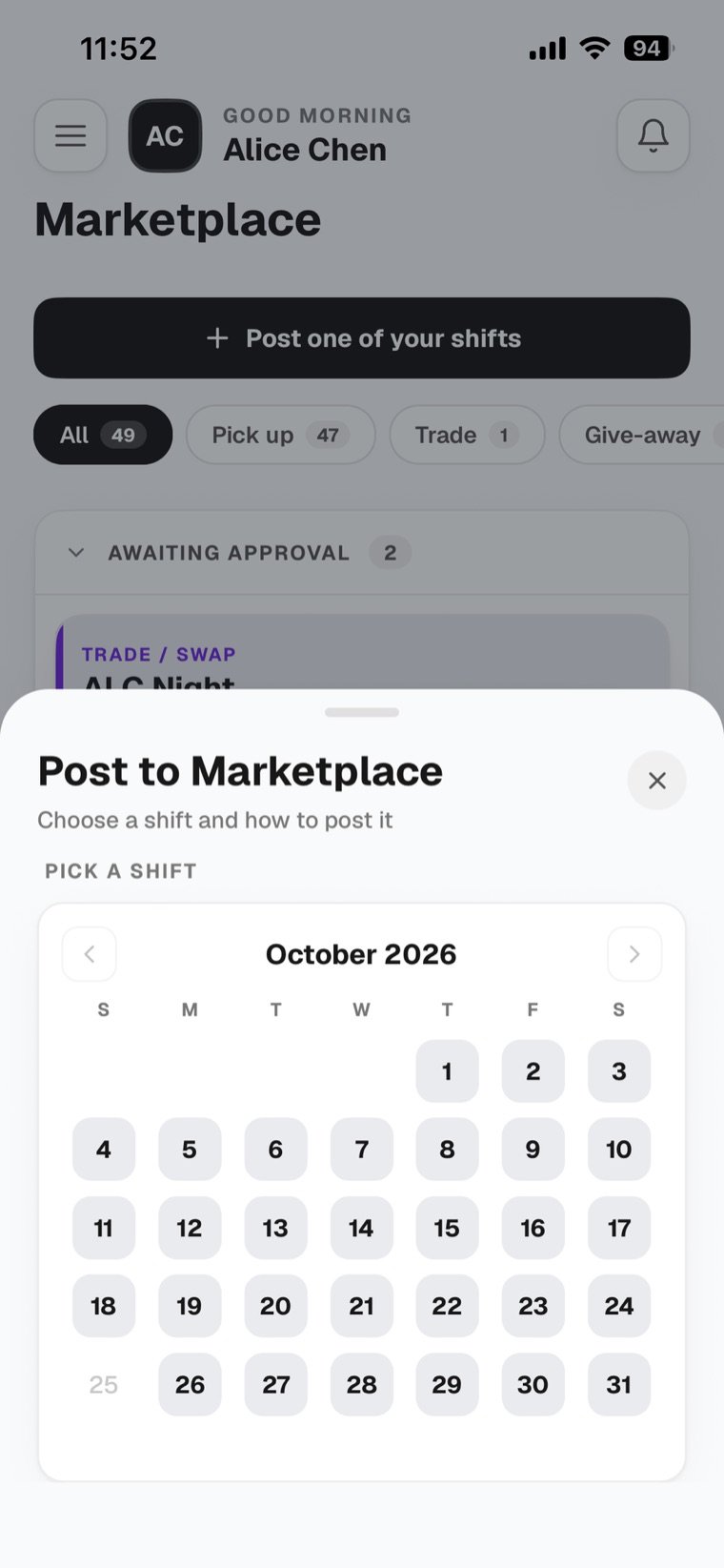
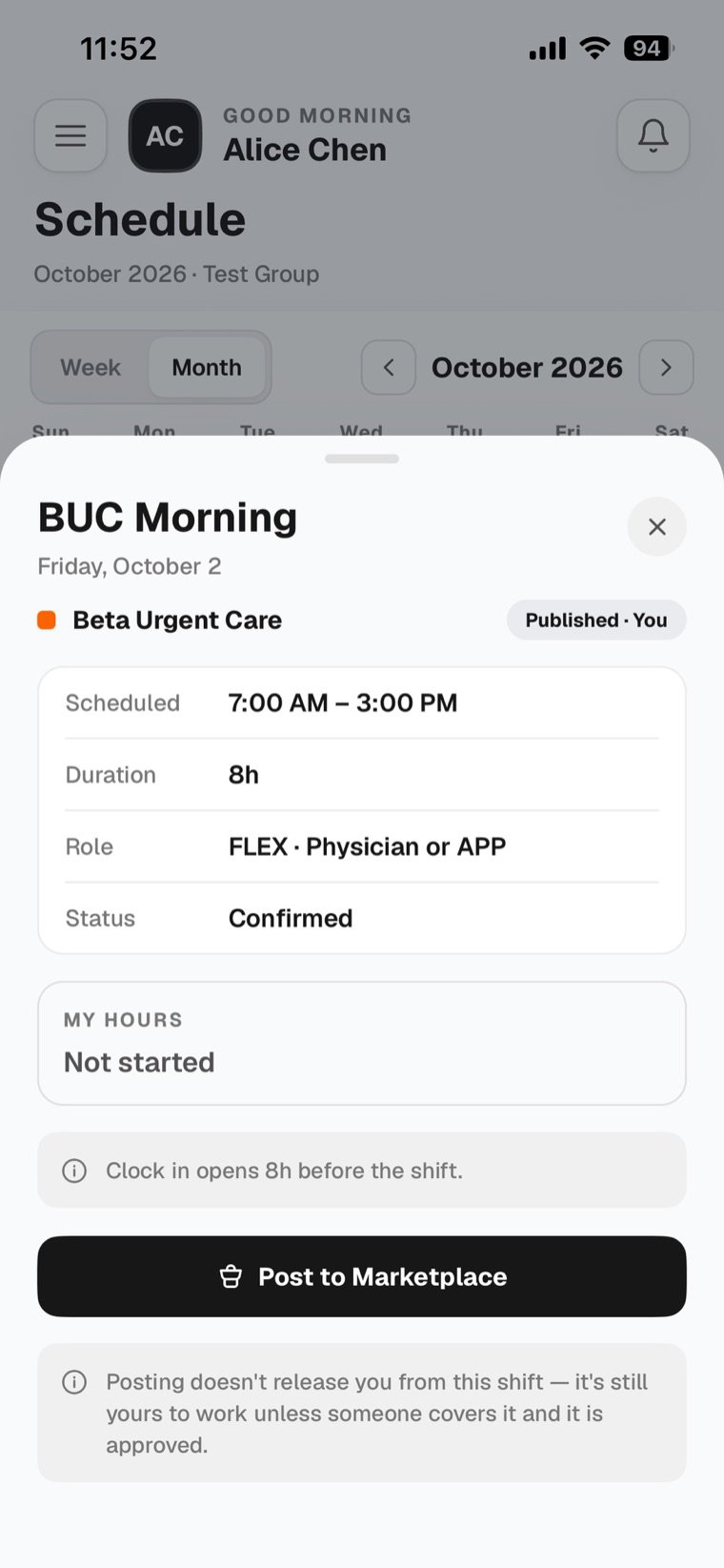
Two ways: the + Post one of your shifts button on the Marketplace screen, or Post to Marketplace on a shift from the Schedule screen.
Marketplace → + Post one of your shiftsSchedule → shift → Post to Marketplace
M2Where are the open shifts?
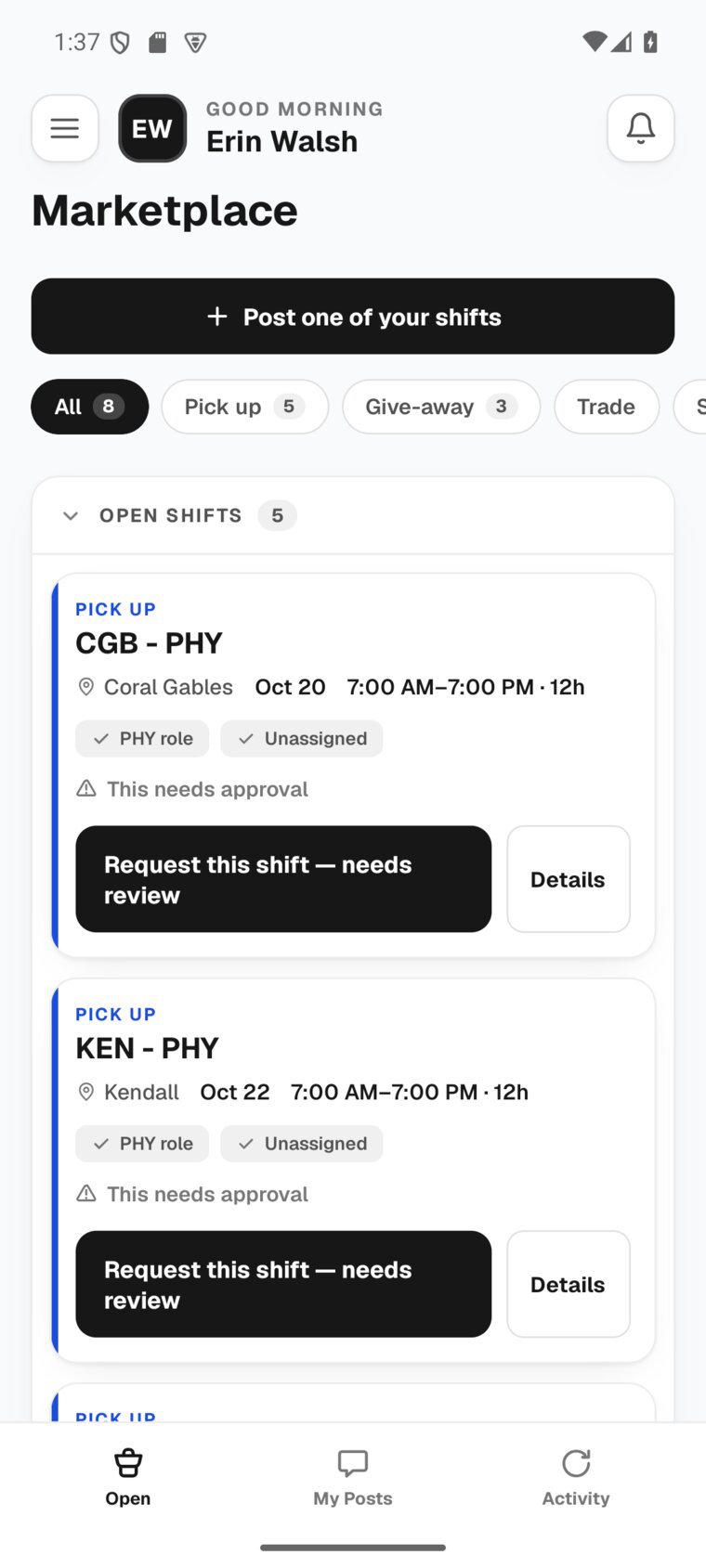
Open the menu → Marketplace. On the Open tab, open shifts come first, then give-aways, trades and splits. Tap a section’s header to collapse it.
Tap Request this shift on the one you want. Your admin approves the request before the shift is yours.
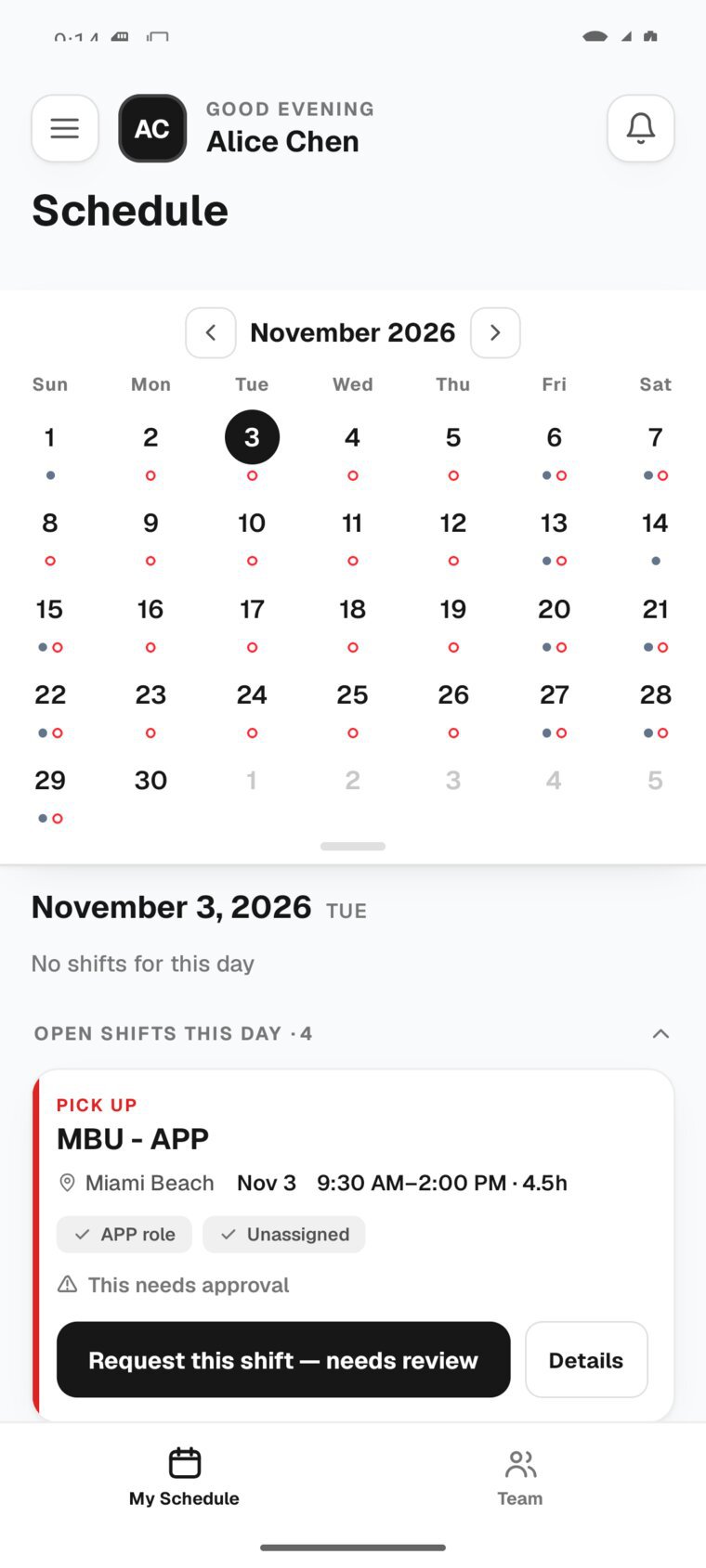
NoteOpen shifts also show on My Schedule as a hollow red circle under the day.
Open shifts at the topA hollow red circle: open shifts that day
M3Can I pick up only part of a shift?
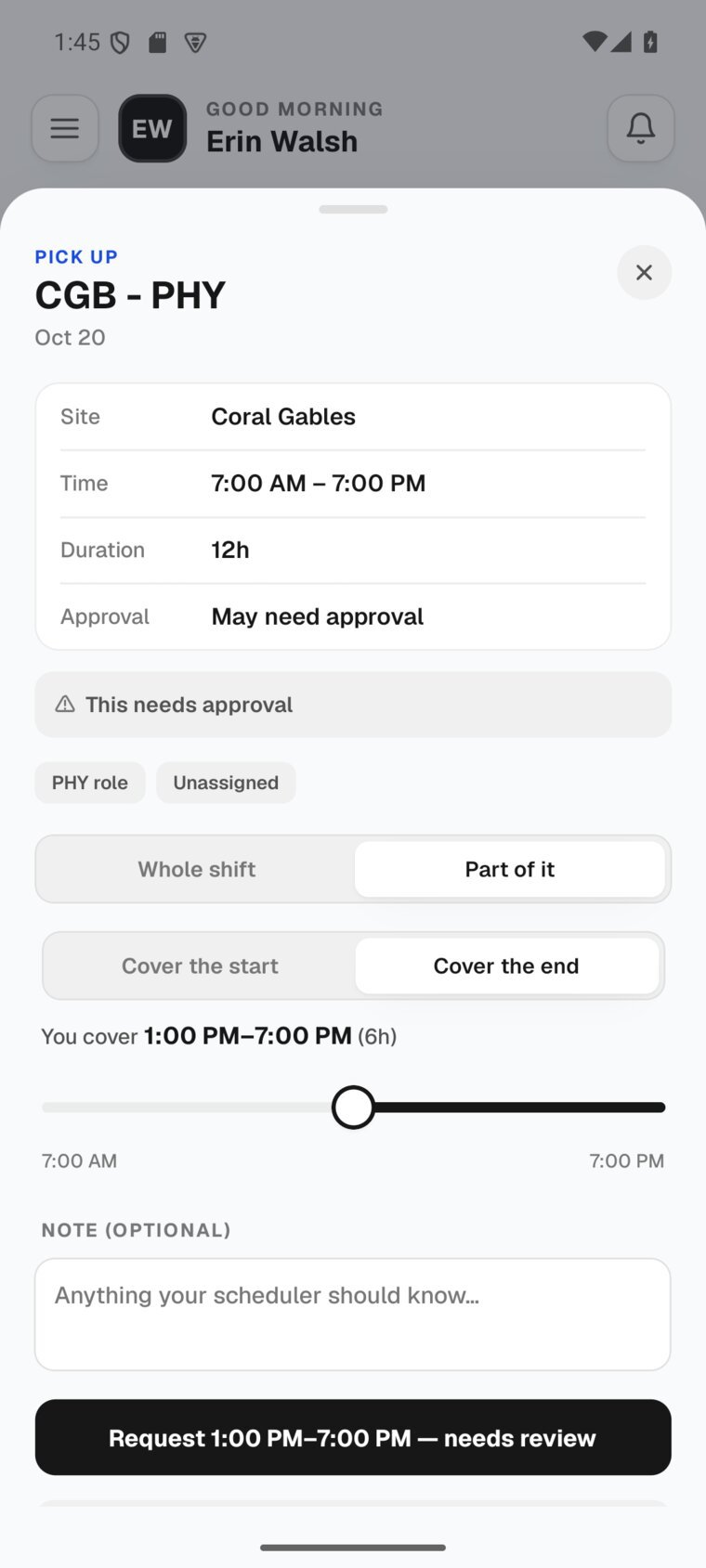
Open an open shift or a give-away and tap Part of it. Slide to the hours you can work, then send the request.
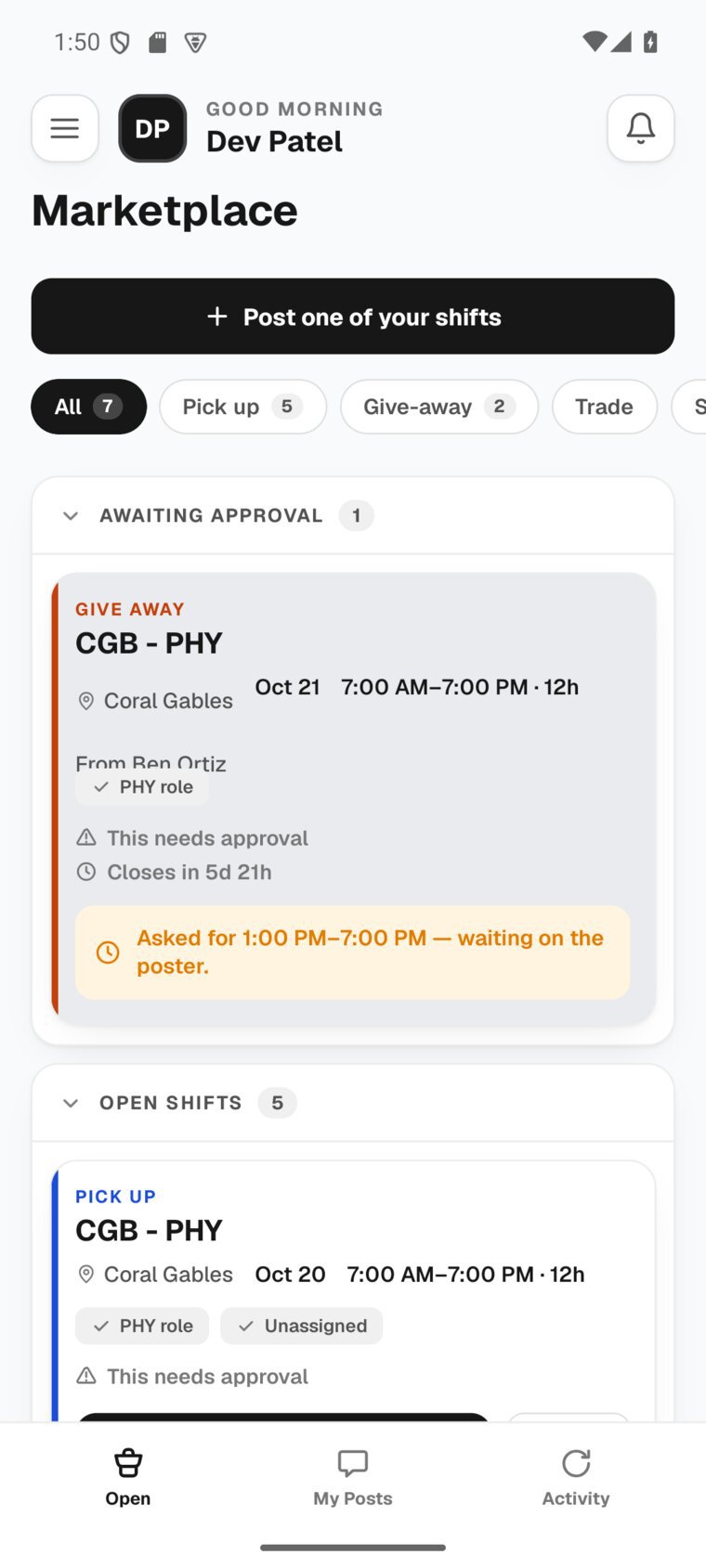
Part of it → slide to your hoursWaiting while it’s reviewed
Open questionWill splits and partial pick-ups be on? If not, this question comes out.
M4How do I trade a shift with a specific colleague?
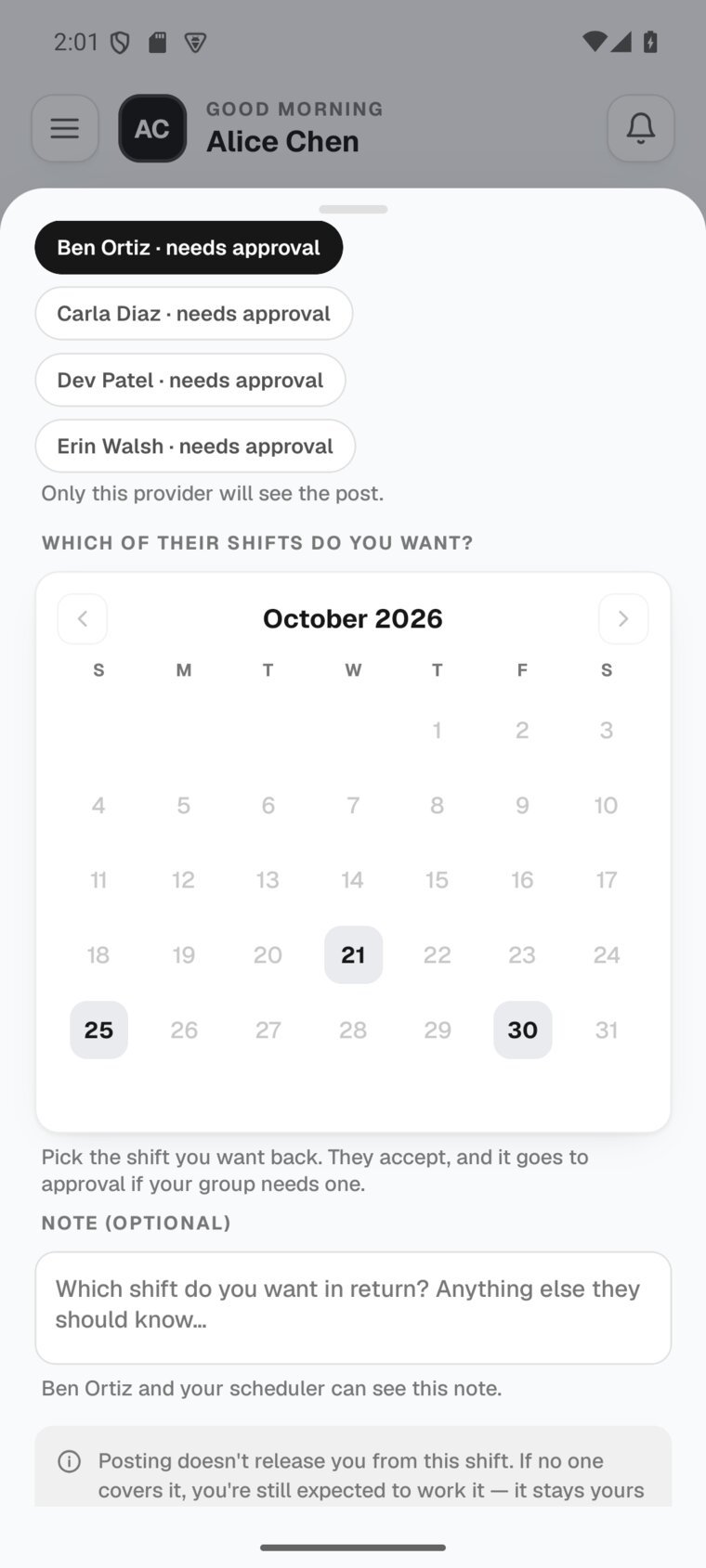
You post it. Tap your shift → Post to Marketplace → Trade. Pick the colleague, then pick which of their shifts you want.
They accept. They tap Accept swap. The schedule changes once your admin approves.
Pick the colleague and their shiftThey tap Accept swap
M5Someone sent me a trade request. How do I respond?
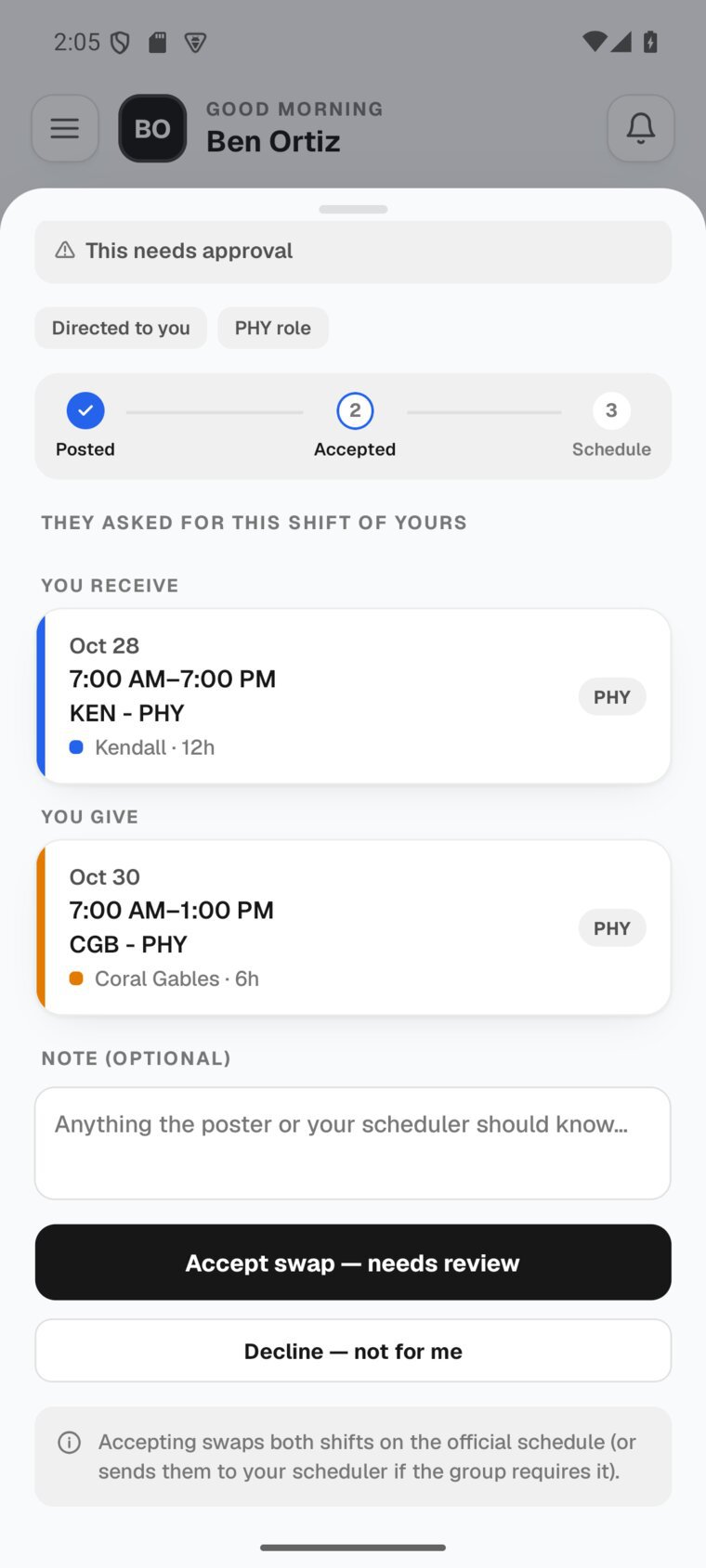
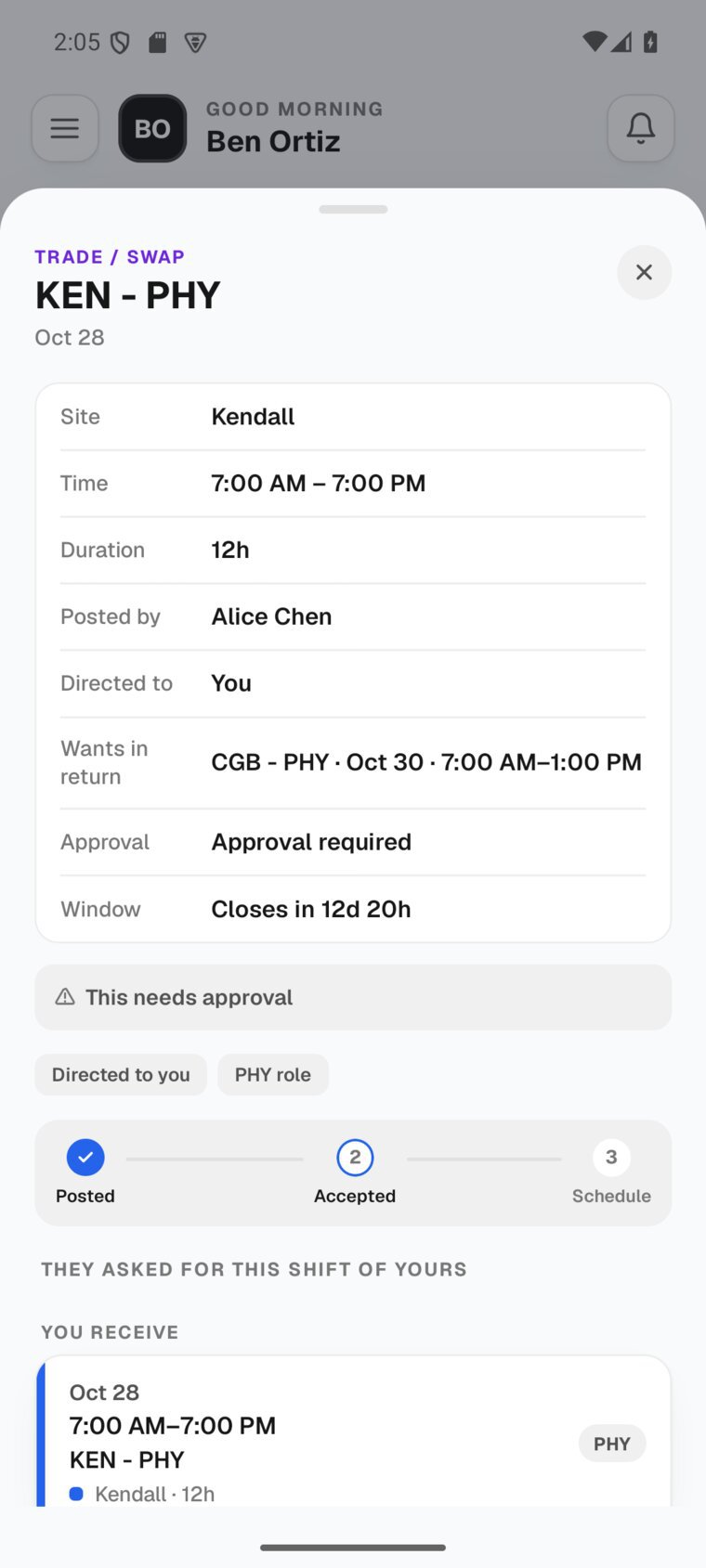
Open it from the notification or from the Marketplace. It shows both shifts. Tap Accept swap or Decline. Changed your mind before your admin approves? Tap Withdraw my acceptance.
They asked for this shift of yours
M6I posted a shift but it still shows on my schedule. Is something wrong?
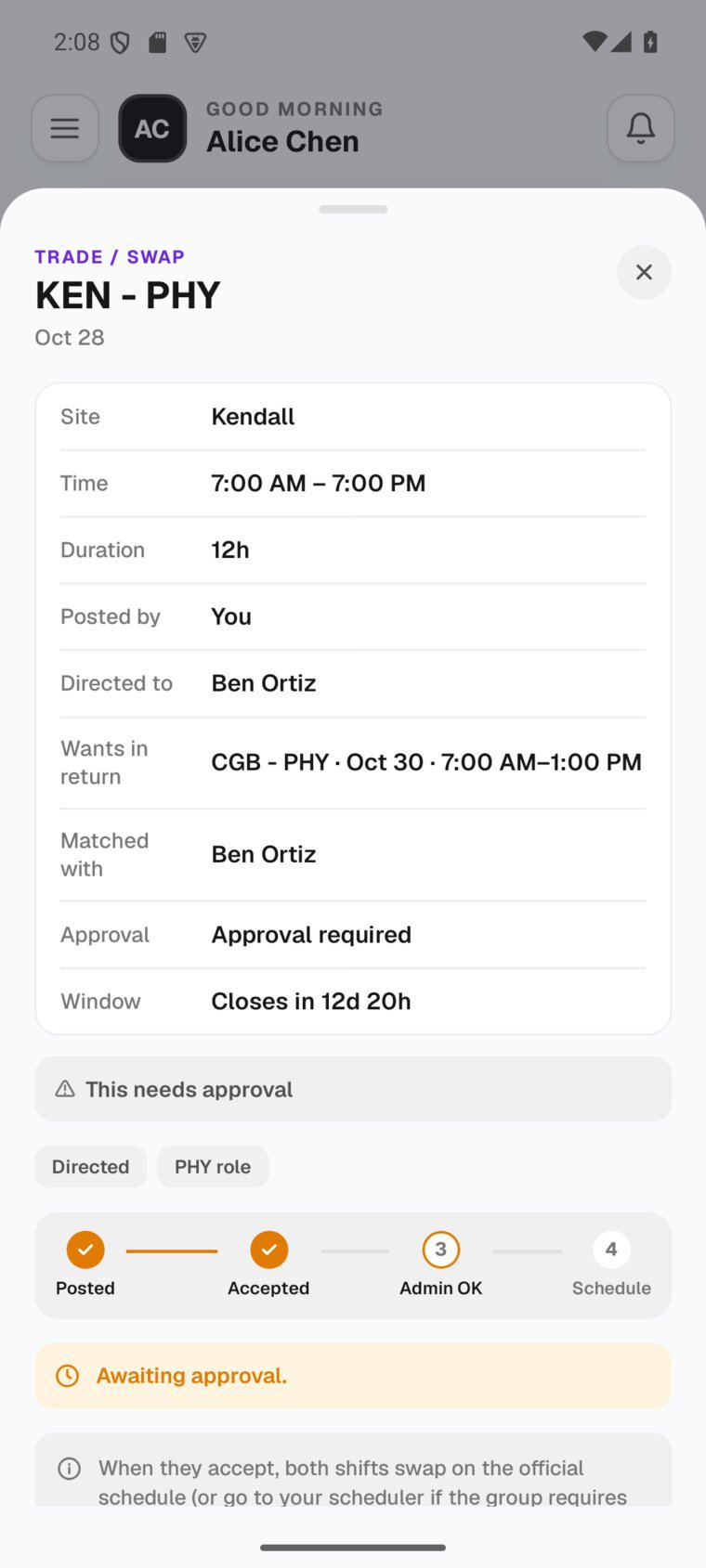
No. Your shift stays yours, and you work it, until the move is approved. Open the post to see where it is: Posted, Accepted, Admin OK, Schedule.
Still yours while it waitsPosted, Accepted, Admin OK, Schedule
M7How do I withdraw my post?
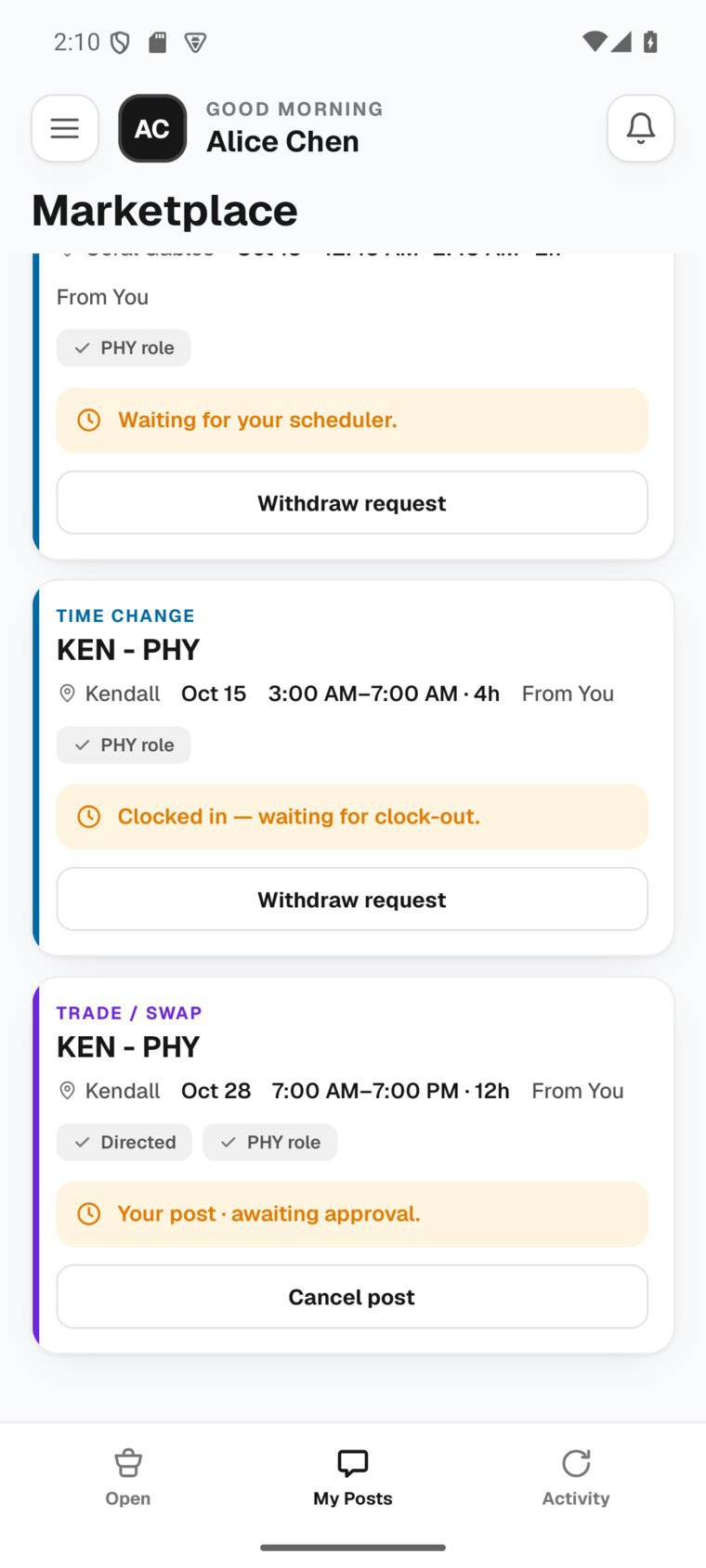
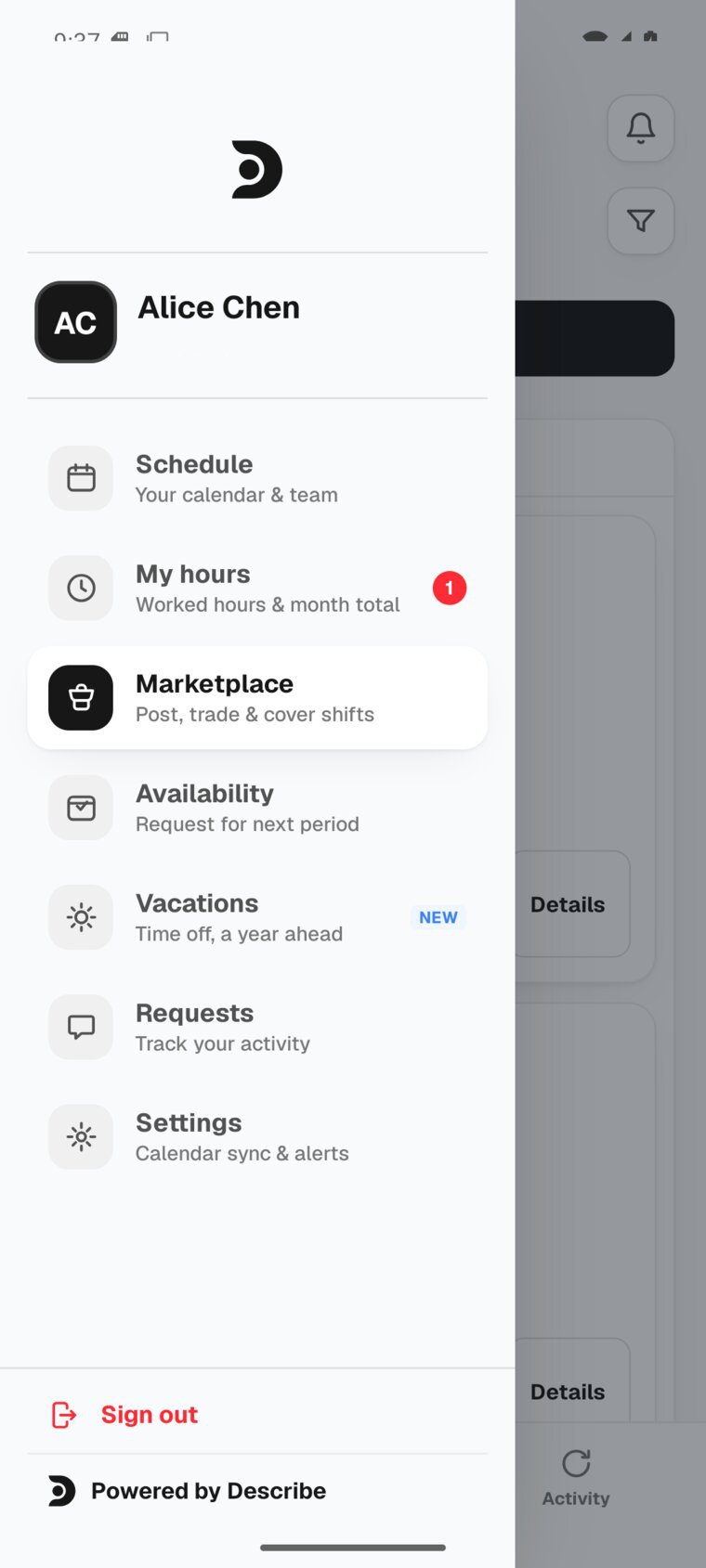
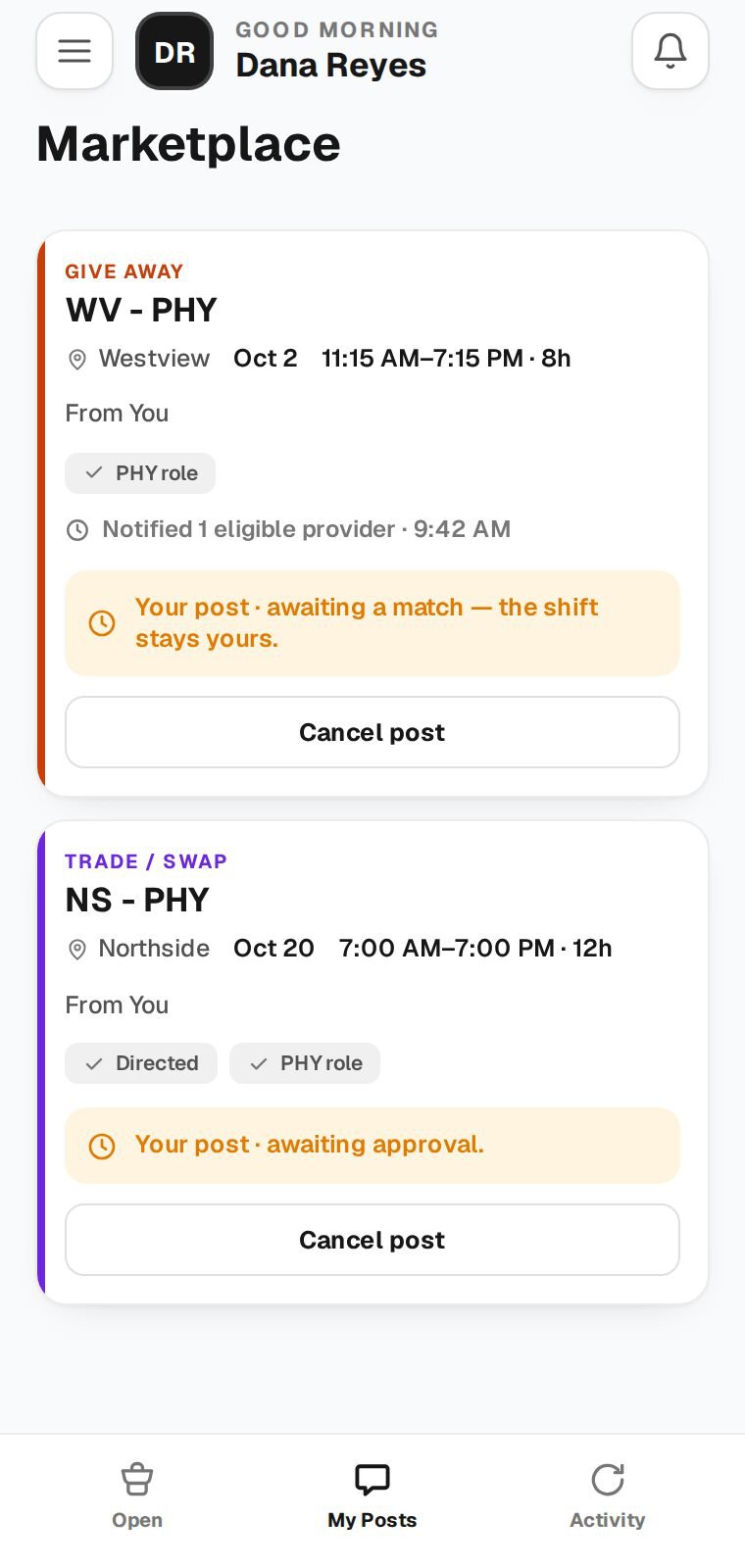
Menu → Marketplace → My Posts → Cancel post. Your shift stays on your schedule. Once a post has been approved, the schedule has already changed, so contact your admin instead.
Menu → MarketplaceMy Posts → Cancel post
Public link
Open questionDo you share public schedule links with clinicians? If not, drop this section.
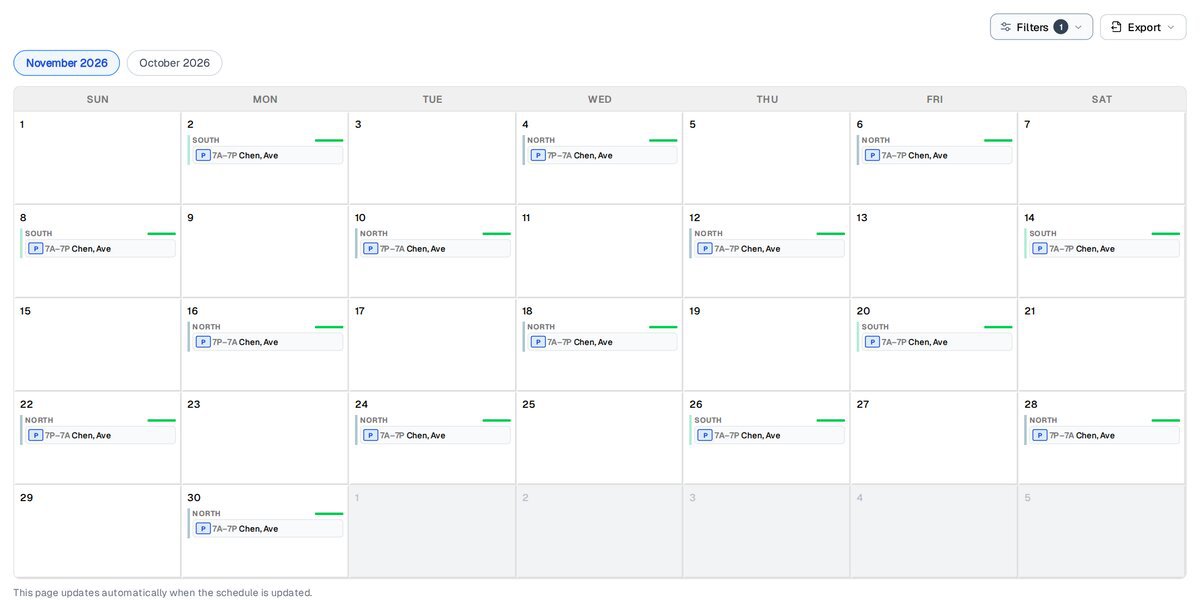
P1How do I see only my shifts on a public link?
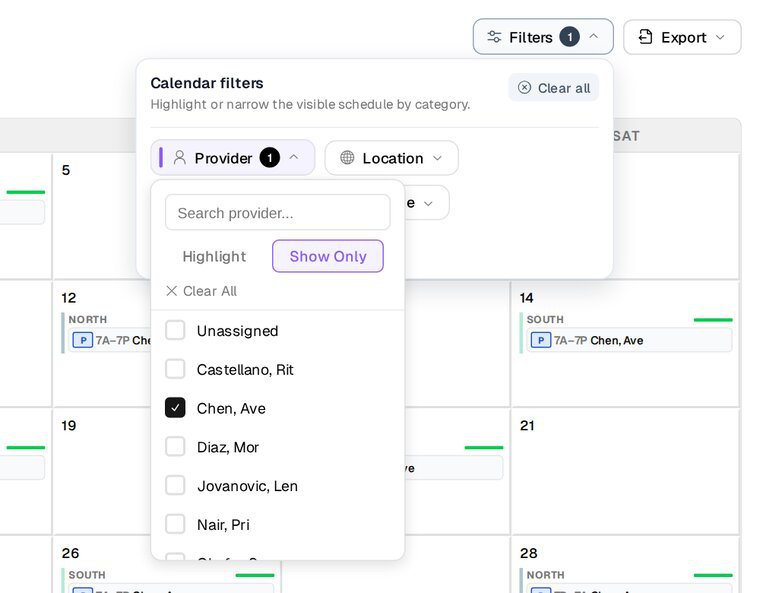
Open the link on a computer and click Filters. Pick Provider, switch it to Show Only and tick your name. Bookmark the page to come back to the same view.
NotePublic links are made and shared by your admins. They’re view-only.
Filters → Provider → Show OnlyOnly your shifts are left
P2How can I print my schedule?
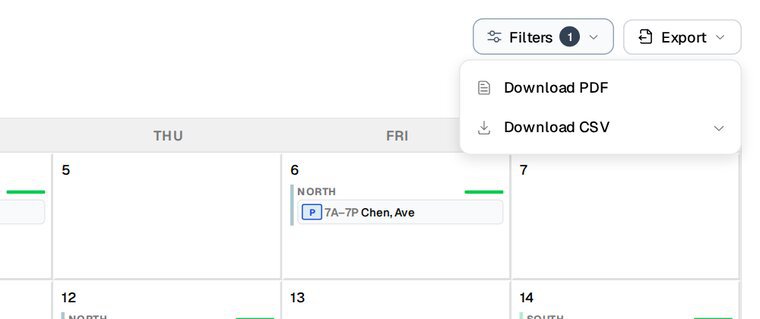
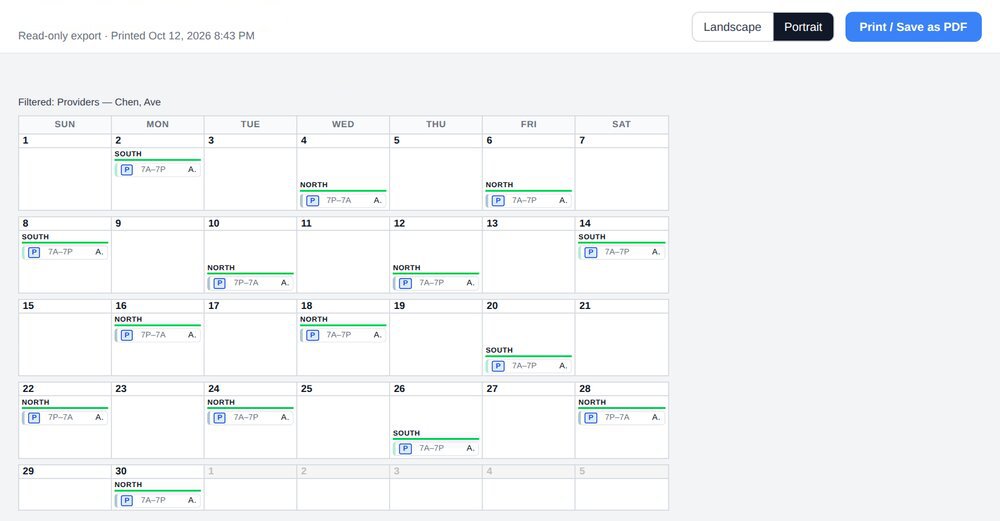
Open the public link on a computer and click Export → Download PDF. Choose Landscape or Portrait, then Print / Save as PDF. The PDF follows your filters.
Export → Download PDFThe print view: Print / Save as PDF
Other questions?
Ask in Evergreen’s Describe channel on Slack, where everyone sees the answers. For anything about your own account, use the help chat in the app or on scheduling.describeos.com.
Dec 1 – Dec 15
Timeline
November – December 2026
SunMonTueWedThuFriSat
Nov 29
30
Dec 1Get set up
2
3
4
5
6
7
8
9
10
11
12
13
14
15Go live
16
17
18
19
Mon · Dec 1 – Sun · Dec 14
Get set up
What you can do
Describe
ShiftAdmin
Download the app and sign in
View your schedule
Swaps, trades, give-aways
Clock in / out
ShiftAdmin is the official schedule. Describe shows yours so you can get used to the app.
Mon · Dec 15, early morning
The switch
Early that morning, about 6–9 AM Pacific, ShiftAdmin pauses while we move everything into Describe, including open posts and requests. Your admins then check it for about an hour, and Describe goes live.
Open questionHow should clinicians reach you for a sick call during the pause, while neither ShiftAdmin nor Describe takes changes?
From Dec 15
Everything in Describe
What you can do
Describe
ShiftAdmin
View your schedule
Swaps, trades, give-aways
Requests
Clock in / out
ShiftAdmin is closed for changes.
Step 1
App Download
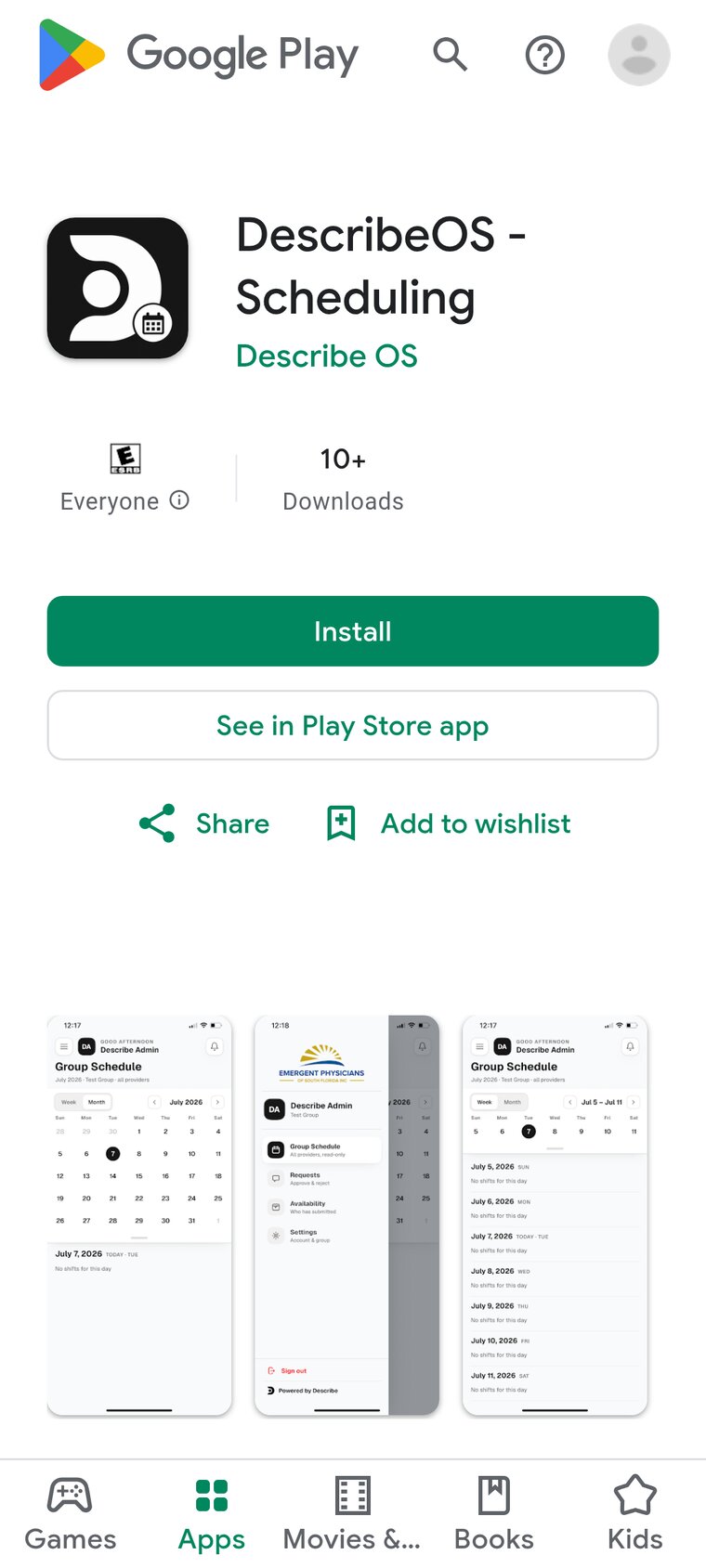
Point your phone's camera at the code for your phone, or open the link we send you. The app cannot be found by searching the App Store or Google Play — it only opens from a direct link.
Look for this icon.
1 The app’s App Store page, opened from the QR code or the link we send you. You can’t find it by searching.
2 Enter your email and tap Continue.
3 Enter your password and tap Log in.
4 The first sign-in asks to send notifications: tap Allow.
5 You land on your schedule.
First time? You don’t have a password yet
After you enter your email, we email you a code. Enter it, then choose your password.
Tried the app in the Evergreen sandbox?
Those practice logins end in +evsb and show a test group. Open the menu → Sign out (it’s at the bottom), then sign in with your real email to see your real schedule.
Step 3
Permissions
The app asks for two permissions. Say yes to both: they decide whether the app keeps you posted or stays silent.
Notifications
“DescribeOS” Would Like to Send You Notifications
Notifications may include alerts, sounds, and icon badges.
Don’t AllowAllow
iPhone
Tap Allow
Android
Tap Allow
When your schedule is published or changes
A reminder the evening before a shift, and one before it starts
Updates on your trades and pick-ups, from Dec 15
Texts and email too: turn them on in Settings → Notifications
Reminders, texts and email start at the Dec 15 switch.
Calendar
“DescribeOS” Would Like Full Access to Your Calendar
Describe adds your published shifts to your calendar.
Don’t AllowAllow Full Access
iPhone
Tap Allow Full Access
Android
Tap Allow
Your published shifts in your phone’s calendar
Kept up to date when the schedule changes
Not asked yet? Settings → Calendar sync → Add shifts to this phone’s calendar
If you tap Don’t Allow, you get nothing
No reminders, no alerts, no shifts in your calendar. Turning it back on later means digging through your phone’s settings. It’s far easier to say yes now.
Step 4
Calendar Sync
What this video shows
1 Settings shows Device calendar sync: Synced.
2 Calendar sync: the live feed, and the ways to add it.
3 Apple Calendar: subscribe, and each shift shows up with the site’s address and a directions link.
4 Google Calendar: paste the link into Google’s From URL page.
5Share feed link, Get a new link and Revoke feed.
Your calendar can run a few hours behind
Calendar apps refresh on their own schedule. After a trade or a change, the Describe app is always the up-to-date version.
Next block
Requests
What this video shows
1 Availability: pick the month. The card shows when the window closes and what you’ve sent.
2 Your request limits for the month.
3Edit availability, then tap the days you’re asking for. Press and hold a day to add a note.
4 A request over a limit asks you to reconsider it.
5 Leave a note for the month, then Submit. Then the next month.
Your admins will tell you when requests open
You’ll also get a notification. Urgent Care clinicians can ask for part of a day, for example available until 3 PM.
Open questionHow should we describe the ED’s request allowances, and what does a day left blank mean?
Demo
App Tour
What this video shows
1 Schedule in month view: tap a day to see its shifts.
2 The Team tab: who else is working that day.
3 Tap a shift: time, length, role, status and Post to Marketplace.
4 Marketplace, then My Posts: what was approved, declined or is still waiting.
5 Requests: everything you’ve posted and where it stands.
6 Settings: calendar sync, notifications, time zone, group and profile.
From Dec 15
Marketplace
The Marketplace is where shifts change hands. Open it from the menu, or tap one of your shifts and choose Post to Marketplace.
Give away
Hand the shift to any eligible colleague.
Trade
Swap with a colleague, and say what you want in return.
Pick up
Request an open shift.
Until Dec 15, keep using ShiftAdmin
The Marketplace in Describe opens at the switch.
Your shift is yours until the move is approved
Posting a shift doesn’t release you from it. Keep working it until the move is approved. My Posts shows where each of yours stands.
Open questionWhich types turn on Dec 15, and do moves need an admin’s OK or approve automatically? The cards above change to match.
From Dec 15 · Demo
Marketplace Walkthrough
What this video shows
1 The Open list: every shift you can take, with Pick up shift.
2 Request an open shift. It waits for an admin’s review.
3 Notifications: pick-ups approved or declined, and trades and splits offered to you.
4 A trade offered to you: pick one of your shifts to swap, then accept.
5 Post one of your shifts: give away, trade, split or call-out, and who can take it.
6 A split: give away the start or the end, and drag to set how much.
7 My Posts: awaiting a match, with Cancel post.
Recap
Day-One Checklist
Download the appScan a code below, or use the link we send you. You can’t find the app by searching the store.
Sign inWith your real email. The first time, we email you a code and you choose a password.
Allow notifications and the calendarTap Allow, or Allow Full Access for the calendar on iPhone.
Turn on calendar syncOptional, but it puts every shift straight into the calendar you already use.
Until Dec 15, keep using ShiftAdminFor every swap, trade, request and clock-in.
Can’t sign in? Check you’re using your real email, not a +evsb one.
No notifications? Check the app’s permissions in your phone’s settings.
Help
Ask in Evergreen’s Describe channel on Slack: we’re in it, and everyone sees the answers. For your own account, use the help chat in the app or on scheduling.describeos.com.
For Evergreen admins · removed before clinicians see this
What we still need from you
Dec 15 switch
How clinicians reach you for a sick call during the pause.
Which Marketplace types turn on: give away, trade, trade with one person, split, pick up, call-out.
Whether moves need an admin’s OK.
Hours
Should edited hours need approval, with an edit window or a required note?
Automatic clock-out and missed punches: on or off?
Rollout
Every clinician’s real email (Providers page → … → Edit).
How you’ll describe the ED’s request allowances.
Public links for clinicians: yes or no.
The Slack channel’s name, once Nick sets it up.
Screenshots and videos
Every dashed box is a screenshot or video we’ll take in the Evergreen sandbox once the settings above are decided, so it shows exactly what clinicians will get.